
Templates
How to Create Package Templates
Save packages and add-ons to reuse in proposals.
Create templates for services you offer regularly, such as wedding coverage, highlight films, or travel add-ons.
Group related packages into collections, then choose a collection when creating a proposal.
How collections, packages, and add-ons work together
Organize your services like this:
- Collection: a group of related offers, such as Weddings, Elopements, or Commercial Films.
- Package: a core offer with its own name, included items, description, and price.
- Add-on: an optional extra the client can add to a package.
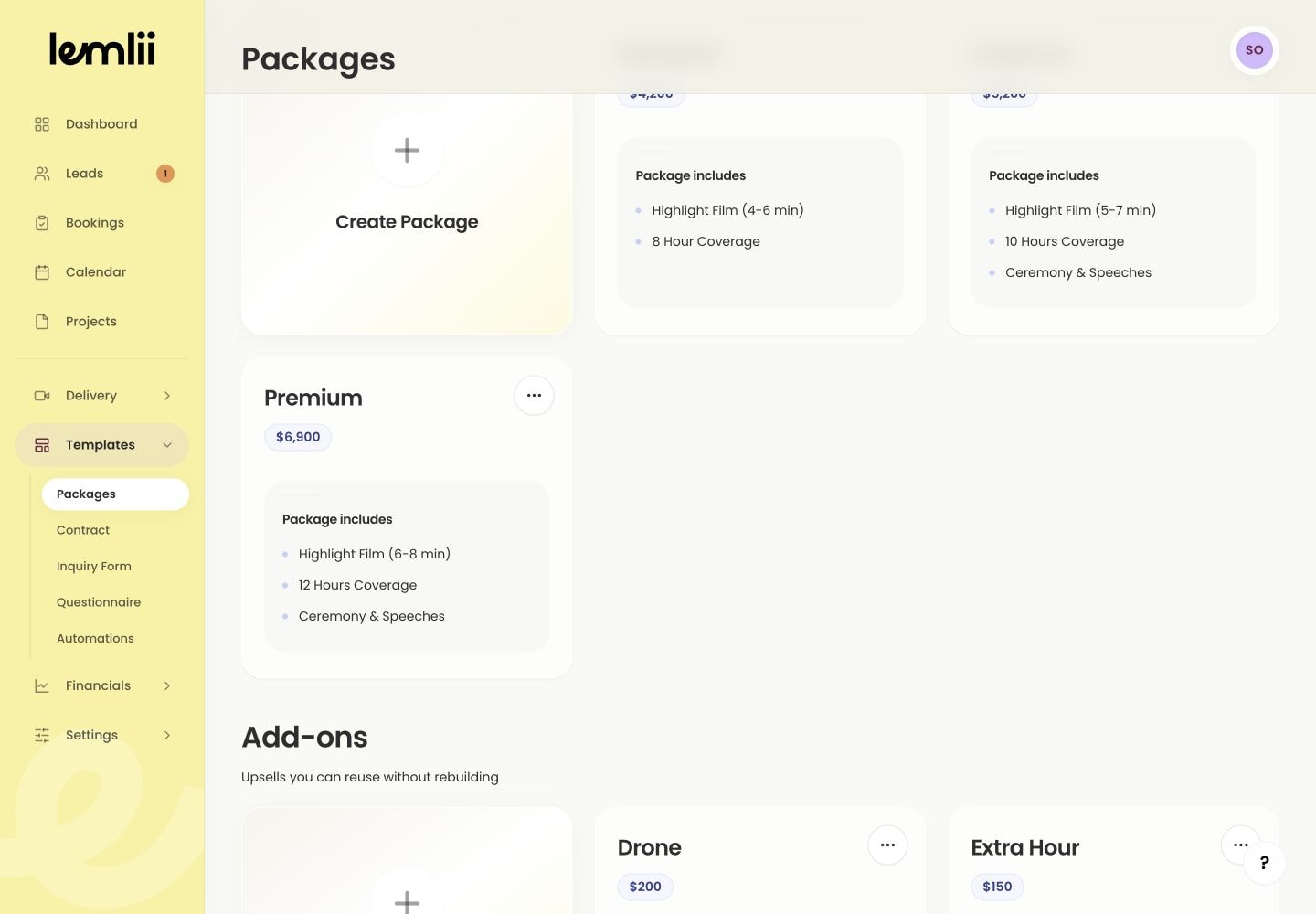
Create a collection card Create the collection
Start with the group that will contain the related packages and add-ons.
- 1.
Open Templates > Packages.
- 2.
Select Create a collection.
- 3.
Enter a clear Collection name.
- 4.
Add an optional description when teammates need guidance about when to use it.
- 5.
Select Create, then open the new collection card.
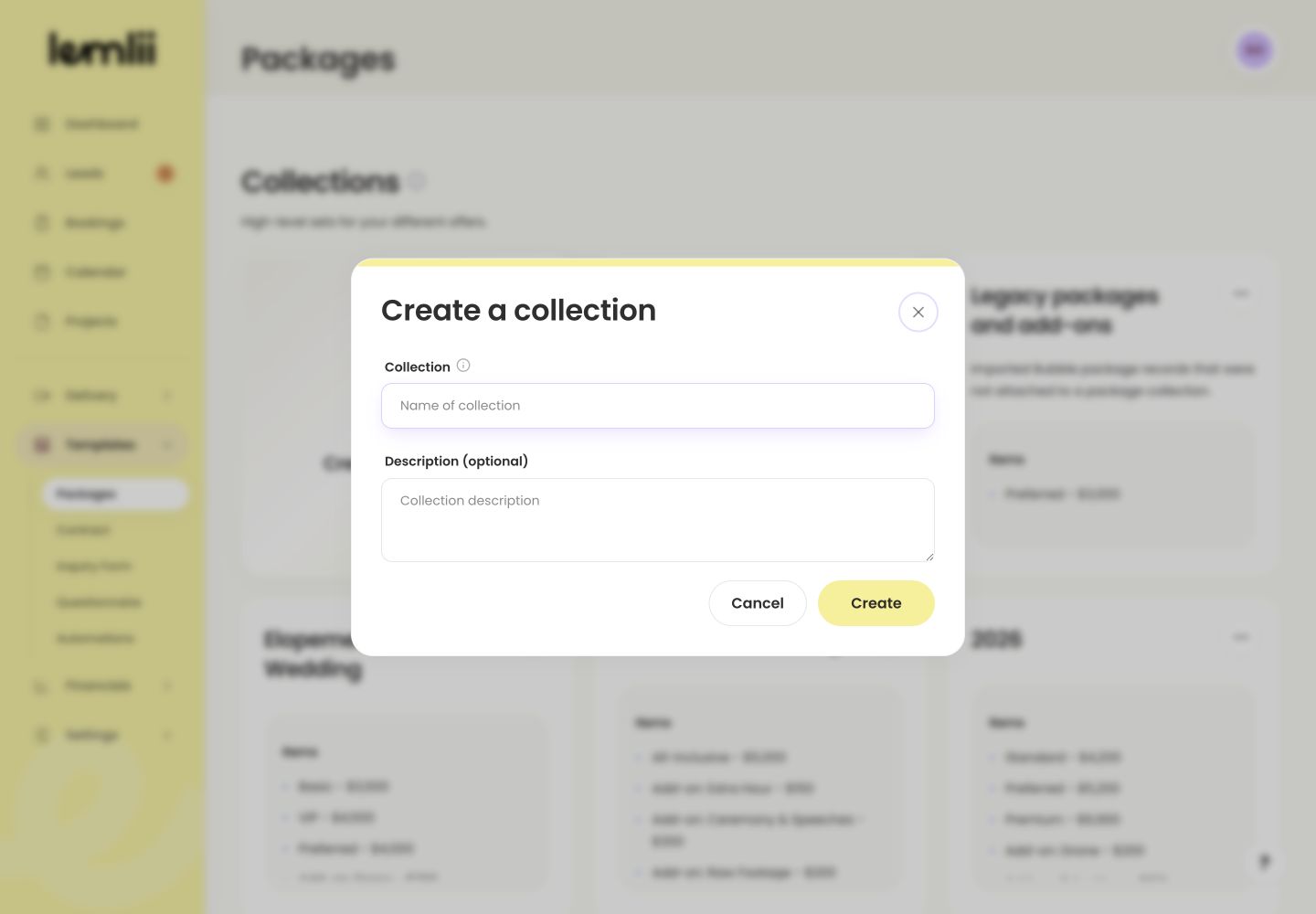
Create collection form
- 1.
Build the core package
Write the package name and description as you want clients to see them.
- 1.
Inside the collection, select Create Package.
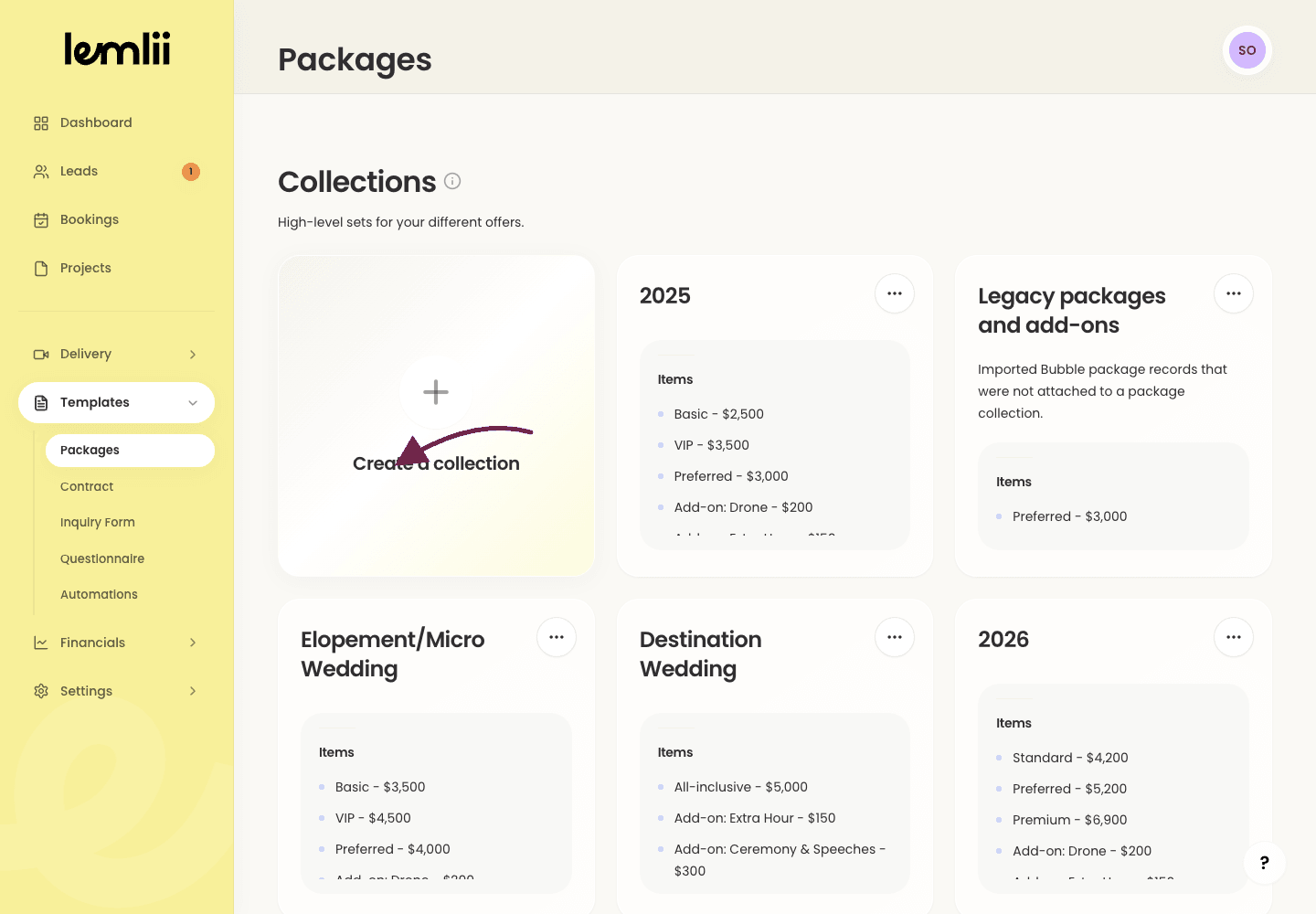
Create Package button inside a collection - 2.
Enter the client-facing Package name and optional description.
- 3.
Add each included service under Includes and arrange the items in the order clients should read them.
- 4.
Enter the Price in the business currency shown by Lemlii.
- 5.
Save the package and confirm its name, items, and price under Packages.
- 1.
Decide what belongs in an add-on
Use add-ons for optional services rather than items that every client receives as part of the core package.
- Additional filming or coverage hours.
- Drone coverage or raw footage.
- Extra edits, teaser films, or rush delivery.
- Travel or another optional service with a separate price.
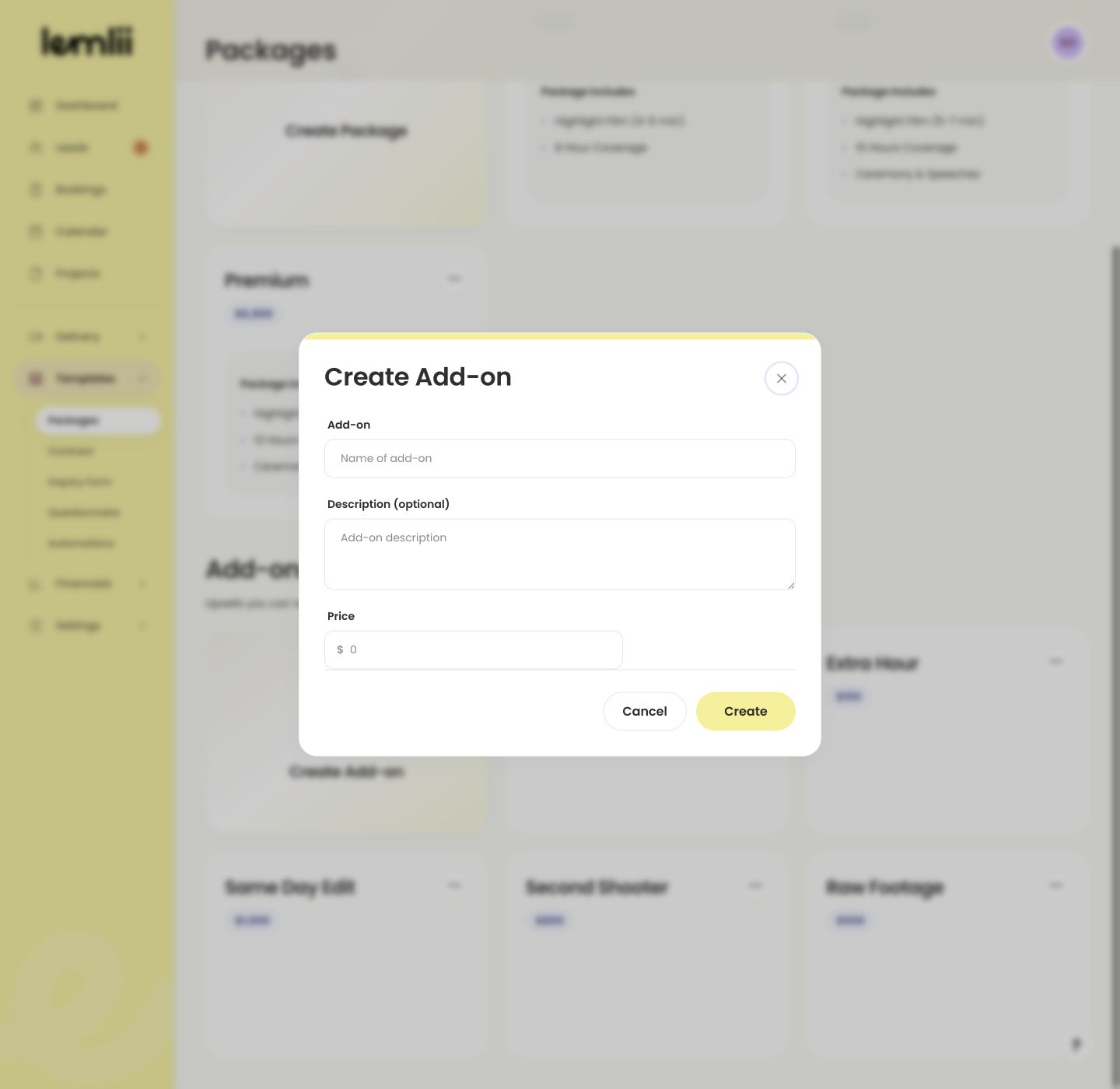
Create Add-on form Create an add-on
Add the optional offer inside the same collection as the packages it can accompany.
- 1.
Select Create Add-on.
- 2.
Enter the client-facing Add-on name.
- 3.
Add an optional description that explains the extra service.
- 4.
Enter the price and save the add-on.
- 5.
Confirm it appears separately from the core packages.
- 1.
Edit, copy, or delete templates
Each collection, package, and add-on has these actions:
- Edit: update the template for future proposals.
- Copy: duplicate the template, then update its name and details.
- Delete: remove the template.
- Deleting a collection also removes the packages and add-ons inside it from the template library.
Test the collection in a proposal
Try the collection in a test proposal to check the pricing.
- 1.
Open a test lead and start a proposal.
- 2.
Choose the new collection and one of its packages.
- 3.
Choose an add-on to test, if needed.
- 4.
Review the line items, taxes, total, and payment schedule before closing the test.
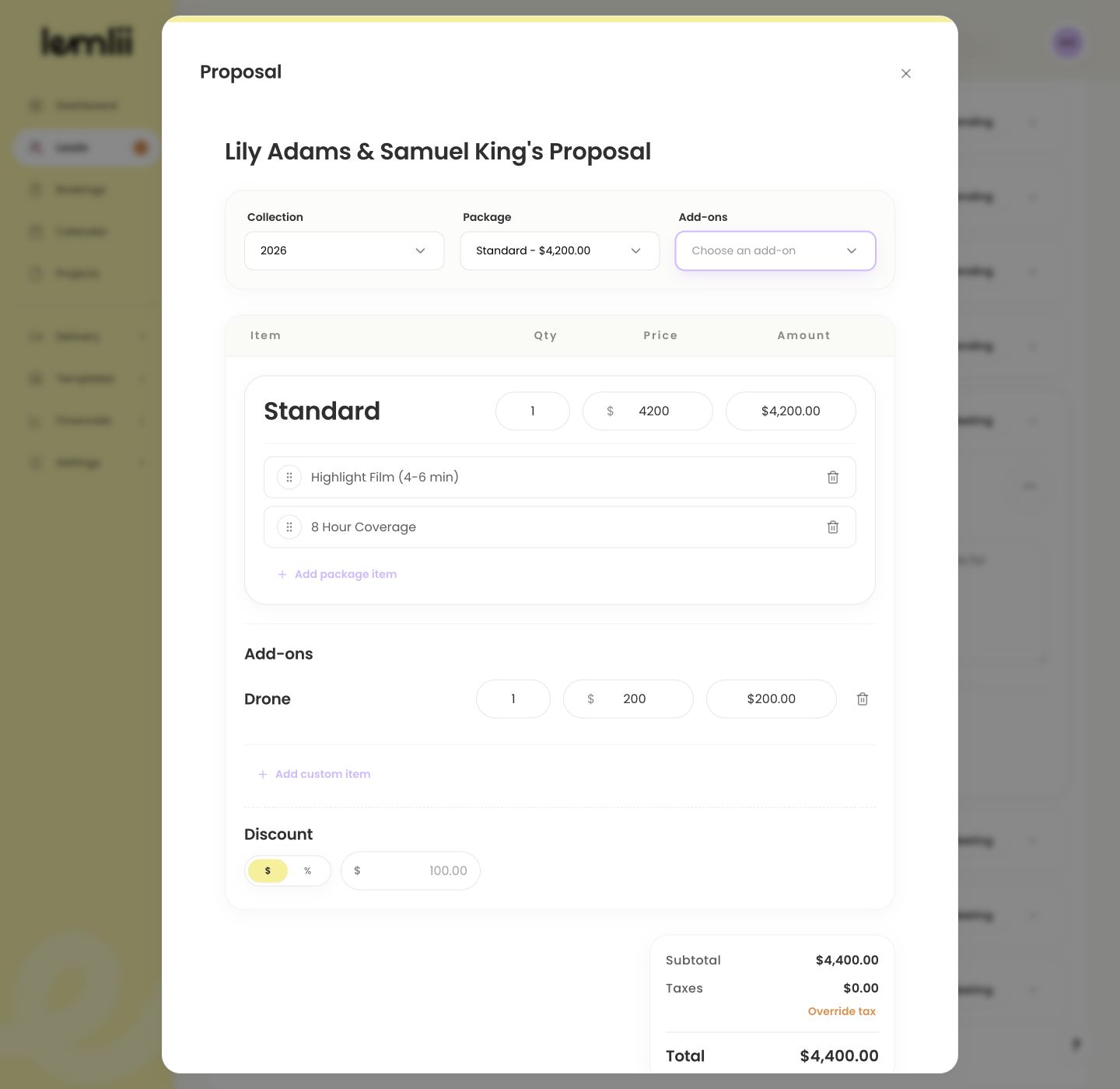
Package selected in a proposal
- 1.
Notes
- A template is a starting point. Always review the selected package, add-ons, price, tax, and payment schedule on the client’s proposal.
- Set your currency in Business Settings before entering prices.