
Settings
How to Update Business Settings
Set your business details, goals, payment defaults, and branding.
Open Settings > Business to manage company details, location, goals, contract defaults, payment settings, Stripe, and branding.
Most fields save automatically after a short pause. Wait for the save to finish before leaving.
Before changing shared defaults
These defaults apply to new work.
Wait for changes to save before leaving.
Company details and location
Review Business name, Business phone, Business email, address, Country, Time zone, and Postal / ZIP code.
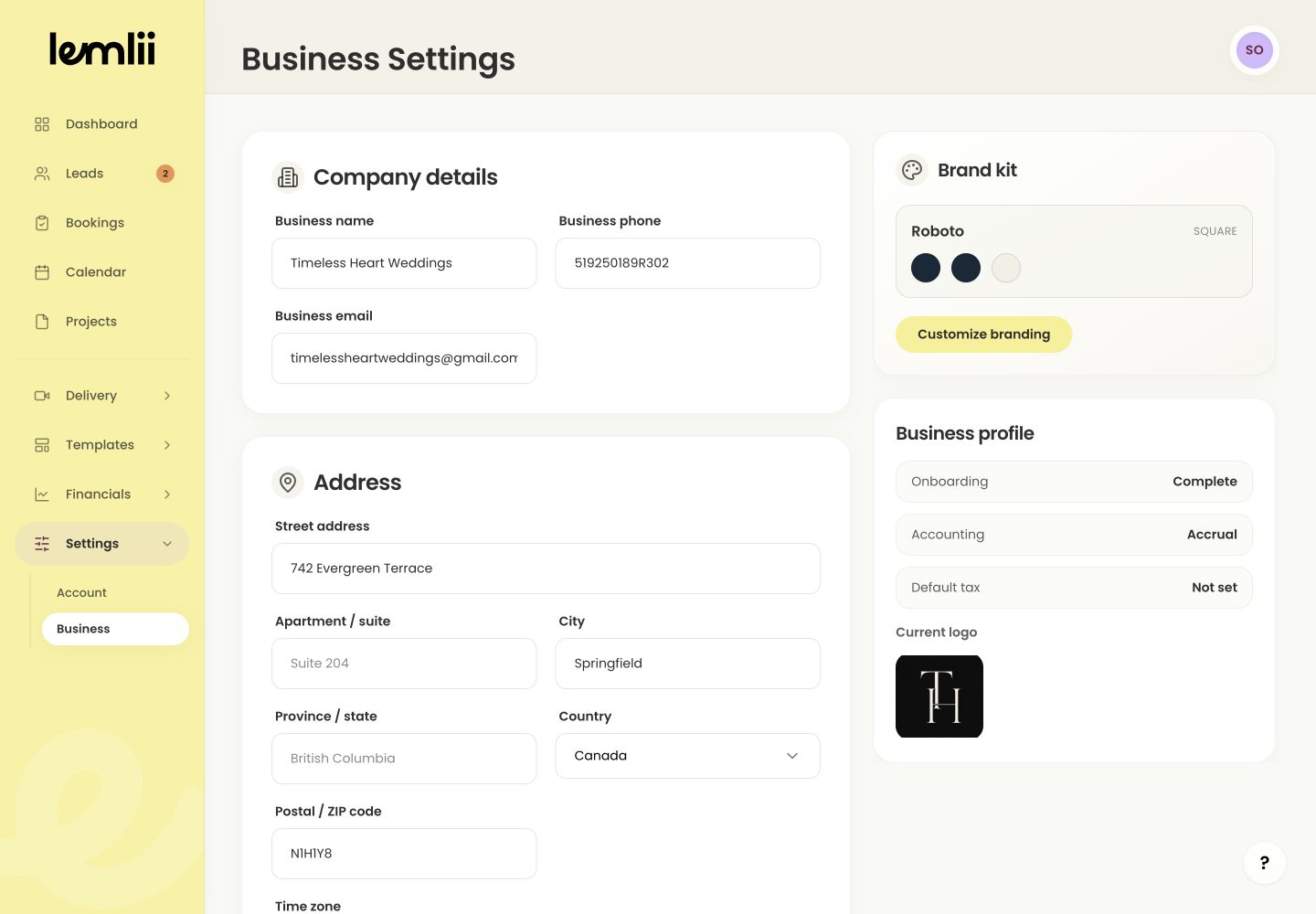
Business Settings company details The time zone is used for automation scheduling and same-day send timing.
Capacity and yearly goals
Under Capacity & goals, set Capacity per day, Yearly wedding goal, and Annual revenue goal.
Financial and workflow defaults
Under Contract & financial information, review invoice timing, tax, currency, tax number, accounting method, delivery deadline, proposal expiry, and payment instructions.
Use Edit payment schedule for default proposal milestones.
Business Settings defaults Payments and client-facing branding
Check Stripe connection and Accept credit cards by default.
Use Customize branding under Brand kit to change the look of your client pages.
Settings that deserve a second look
Country changes can suggest a time zone and default currency; verify both before leaving.
Existing client records and signed documents may keep values that were already saved.
Confirm that the changes were saved
Once saving finishes, refresh Settings > Business to check your changes.
Test payment and delivery defaults in a new proposal and project.