
Proposals & Contracts
How to Create a Proposal
Create a proposal with one or two package options, review the payment schedule and contract, and share it with your client.
Create a proposal from a lead to bring together package pricing, client details, a payment schedule, and your contract.
Offer One option when the package is already agreed, or Two options when the client is still deciding. Both options share one proposal link.
Start from your lead
Prepare your package templates first. Each option needs a package; you can choose packages from different collections.
- 1.
Open Leads and expand the client’s lead.
- 2.
Select Create Proposal.
- 3.
Choose One option or Two options at the top of the proposal editor.
- 1.
Build a single package option
For One option, choose a Collection and Package, then add any Add-ons the client requested.
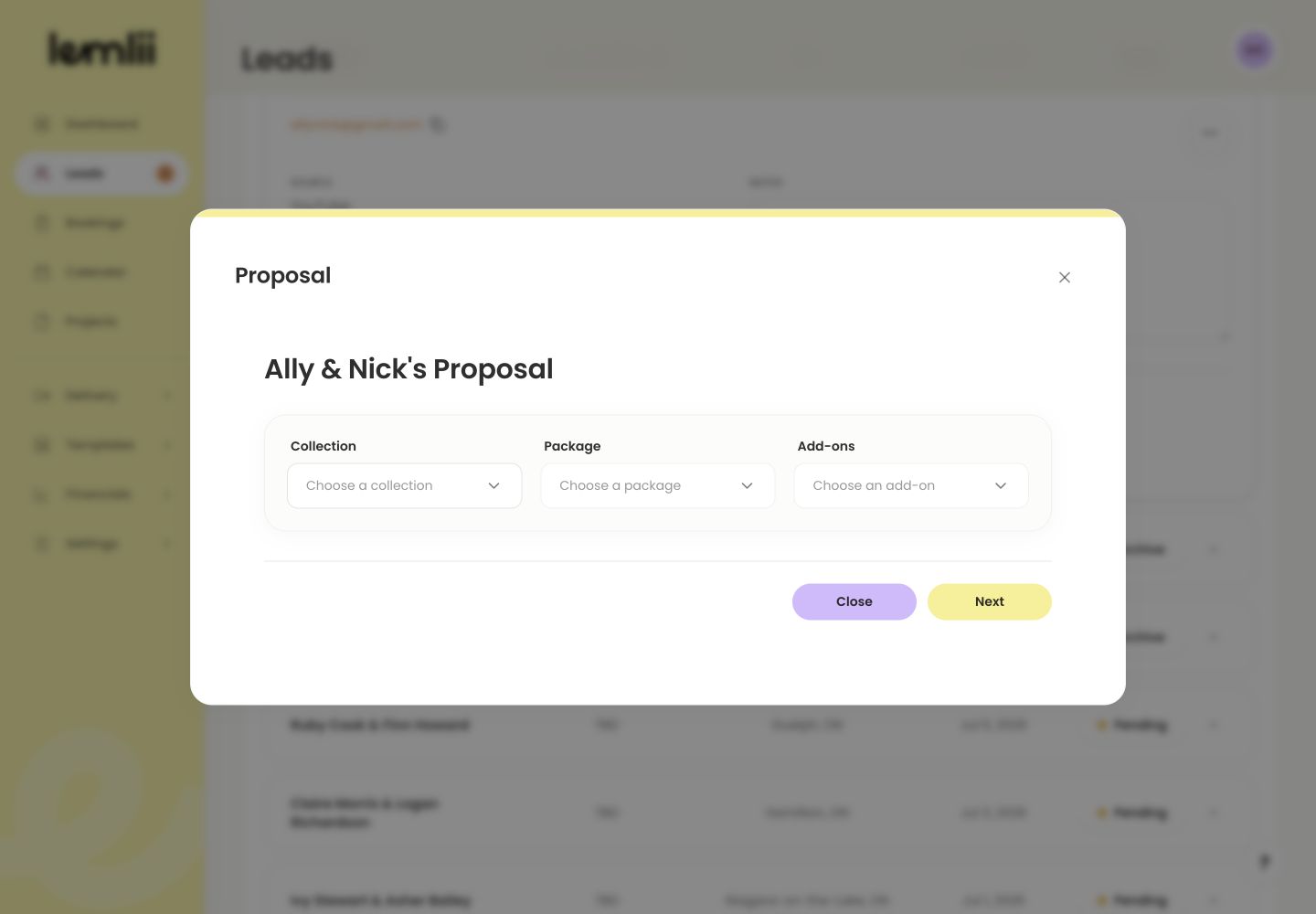
Choose a collection and package Use Add custom item for a charge specific to this proposal. Review the included items, quantities, prices, discount, tax, and total before selecting Next.
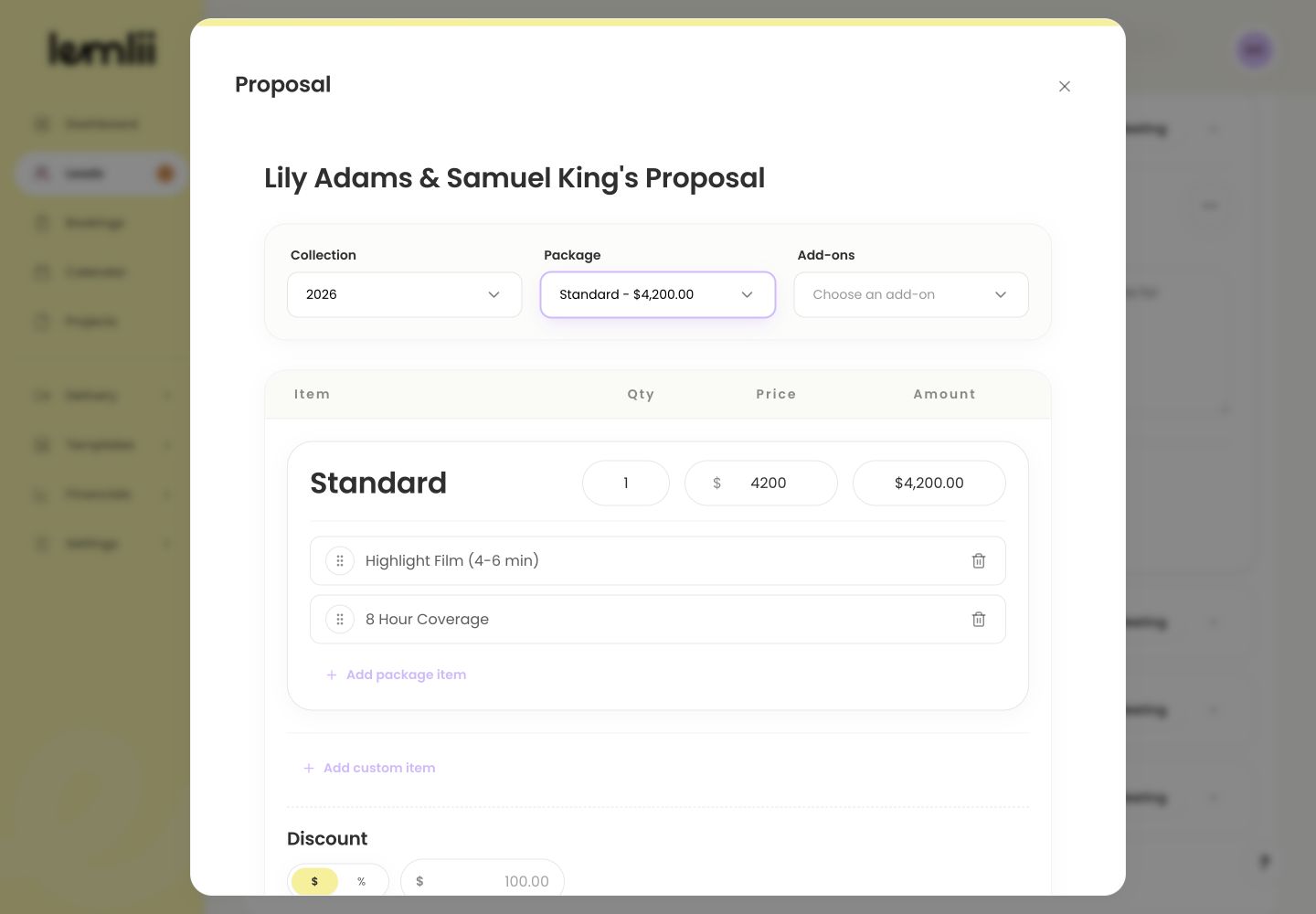
Build the package and pricing Offer two package options
For Two options, use the Option 1 and Option 2 cards to switch between the packages you are editing. Check both options before continuing.

Switch between package options - 1.
Select Option 1, then choose its Collection and Package.
- 2.
Review the package contents and price. Add any Add-ons or use Add custom item for a charge specific to this proposal.
- 3.
Review this option’s discount, tax, and total.
- 4.
Select Option 2 and repeat for the second package. Its pricing settings can differ from the first option.
- 1.
Preview the package options
Select Next to preview the proposal. If you offered two options, switch between them to review each one. The payment schedule updates automatically to match the selected package. To make changes, select Edit to return to the package builder.
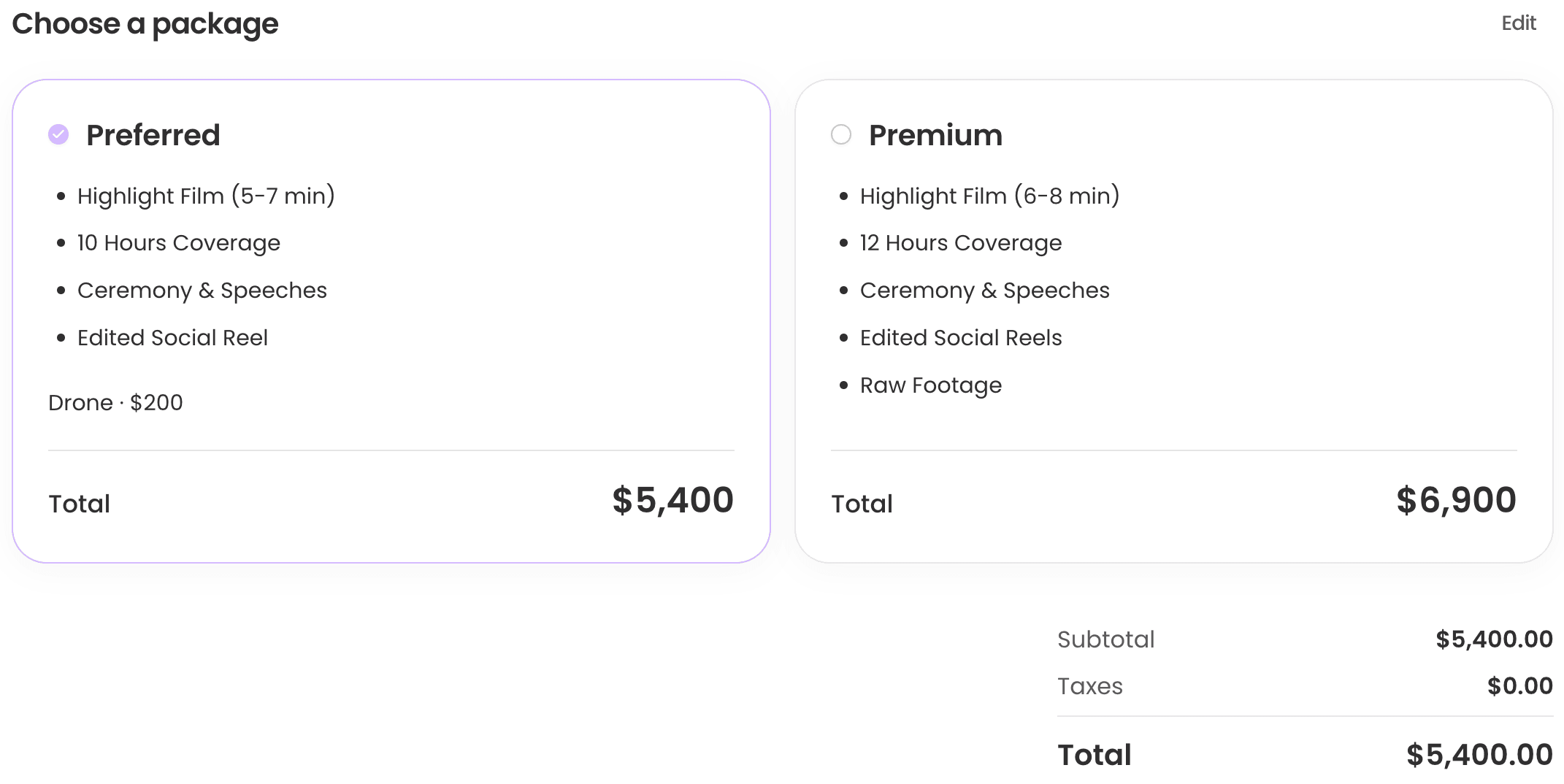
Compare packages in the proposal preview Review the details and contract
Before completing the proposal, check the client details, wedding date, locations, and contract.
- Payment Schedule: review the amounts and due dates. The scheduled payments must add up to the selected package’s total; check both schedules when offering two options.
- Accept credit card: check whether card payments are enabled for this proposal.
- Contract: select Review to read the terms or Edit to make a client-specific change.
- Business signature: enter the studio signature, then select Complete when the proposal is ready.
Share one link with your client
Completing the proposal prepares it for sharing; it does not email the client automatically. Follow Send a Proposal Link to copy the link and include it in your message. If you offered two packages, both are available from that same link.
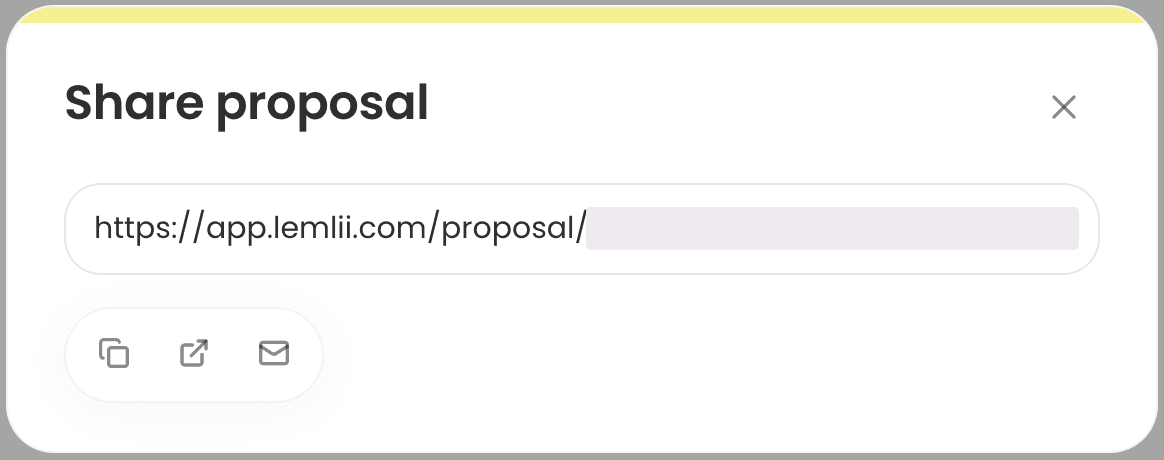
Share one proposal link for both packages What your client sees
If you offered two options, your client sees Choose a package under Investment and a card for each option. Selecting a card updates the package details, total, and payment schedule.
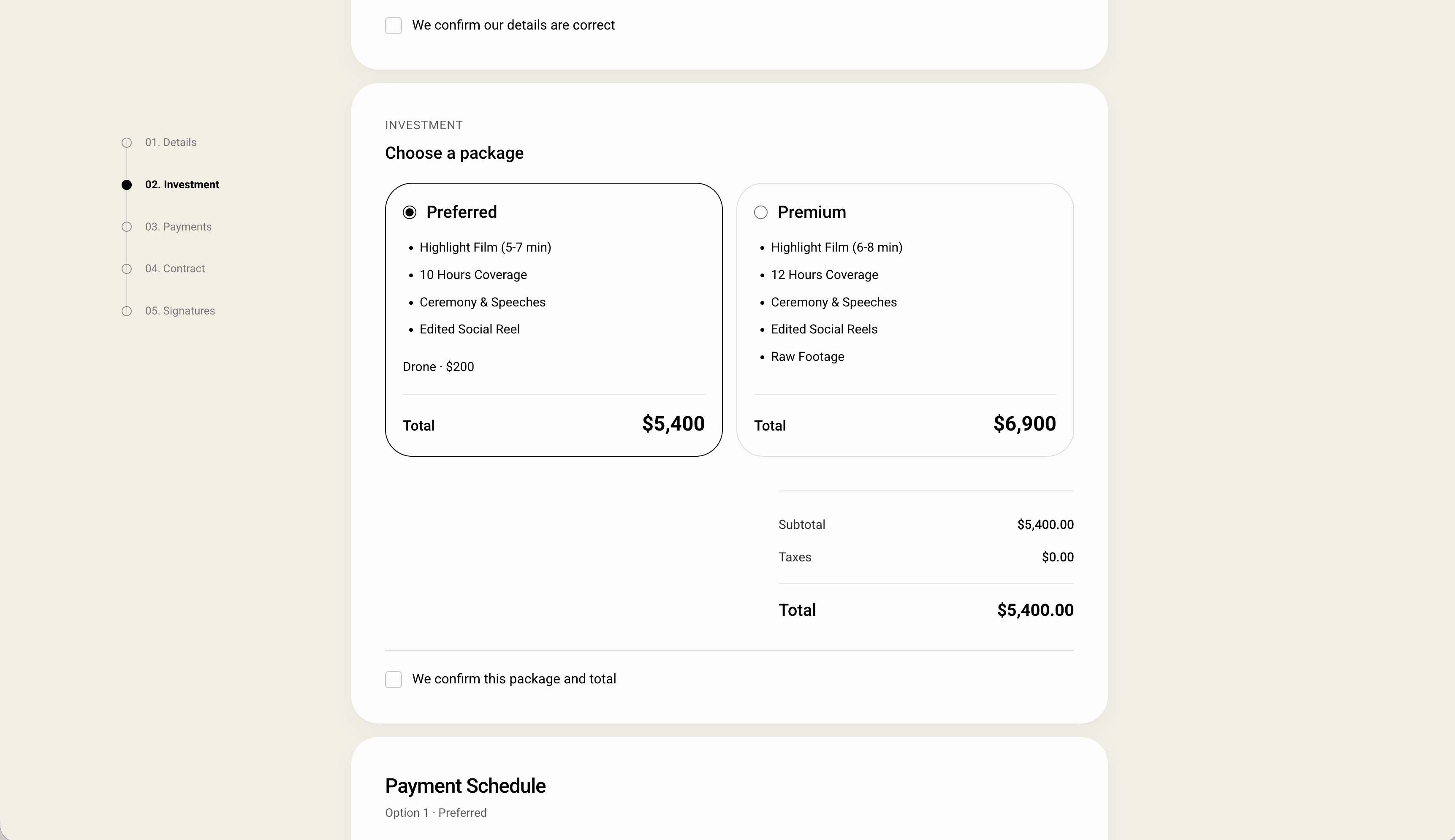
Choose a package in the client proposal - The client reviews and confirms the selected package and payment schedule before signing.
- Changing the selection clears the previous package and payment confirmations, so the client must review the new amounts.
- Signing locks the chosen option. The invoice uses that package and its pricing.
If you need to change the options
Make package changes before the client confirms or signs the proposal. The option-mode controls are unavailable once details are confirmed, the choice is locked, the proposal is signed, or payments have been collected.
- If Next asks you to choose a package, check both Option 1 and Option 2. Each needs a package.
- Changing an option’s collection removes that option’s package and add-ons; its custom items stay. Review the replacement package and total.
- To return to One option, choose the package to keep in Keep one option. The other option is removed.