
Templates
How to Set Up and Embed Your Inquiry Form
Customize the form that creates new Lemlii leads, share its public link, and embed it on Wix or Squarespace.
The Inquiry Form adds new inquiries to Leads. Share the link on social media or add the form to your website.
Lemlii emails you when an inquiry arrives. Open the lead to read the answers.
What happens after someone submits the form
After submitting the form, the visitor sees a thank-you message or goes to the redirect URL you’ve set. Their answers appear in Leads.
- Open the lead to see their contact and event details.
- Check Leads for the answers, even if you haven’t received the notification email.
- If you receive an inquiry by phone, email, or direct message instead, use How to Add a Lead.
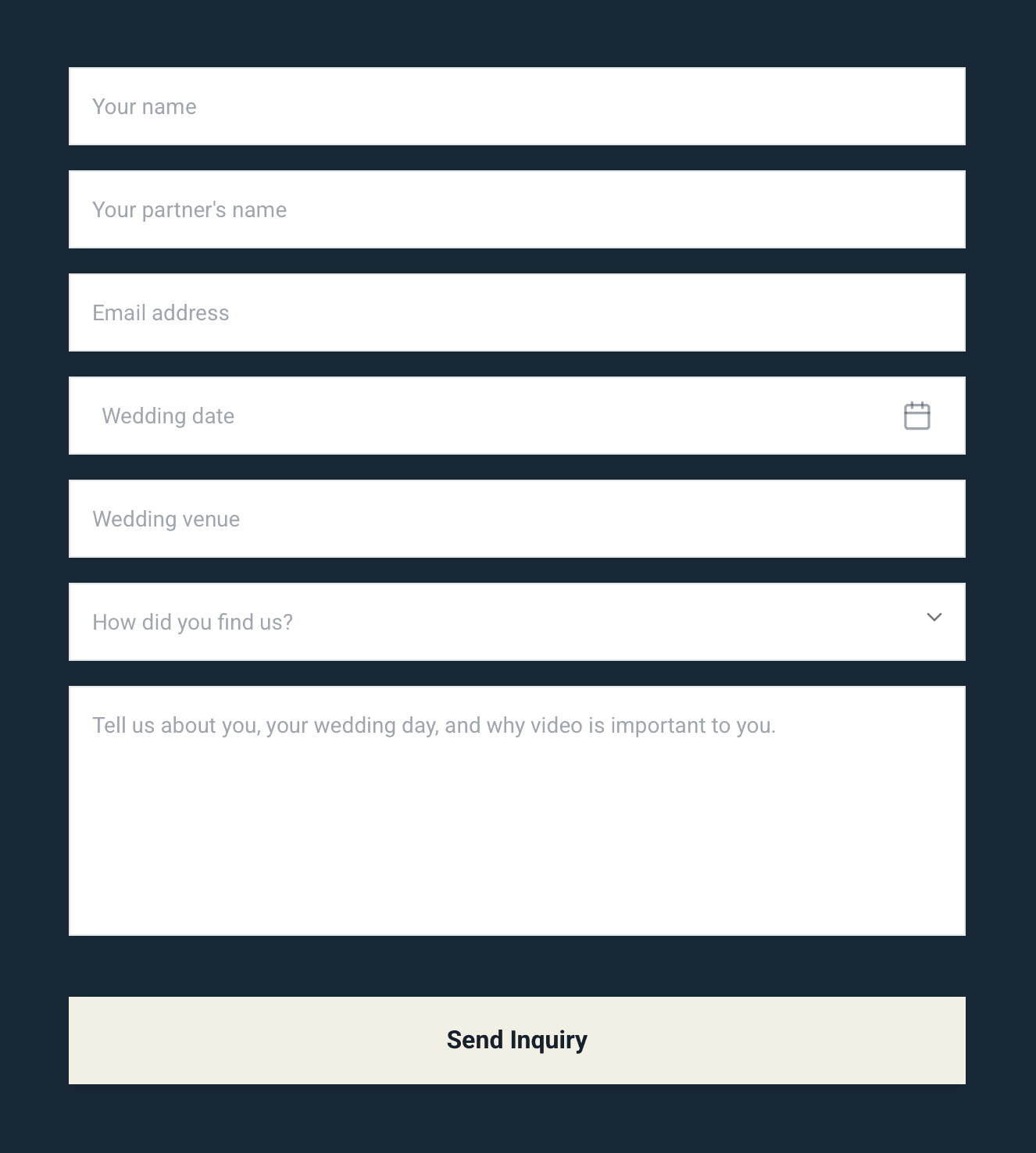
Example client-facing inquiry form Open and customize the inquiry form
Set the form’s link, layout, and questions in the form builder.
- 1.
Open Templates > Inquiry Form from the left navigation.
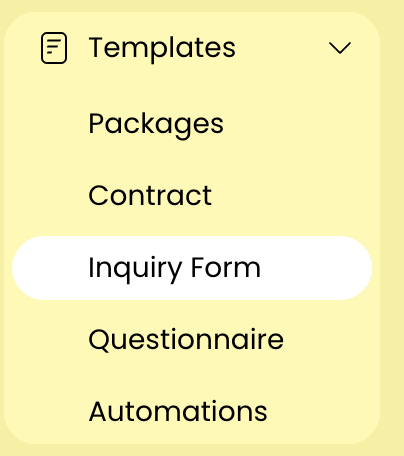
Inquiry Form in the Templates menu - 2.
In Settings, edit Name / URL Slug. If the form’s link is locked, you’ll see Name and the link stays the same.
- 3.
Choose Inside Fields or Above Fields for your question labels.
- 4.
Enter a complete http:// or https:// address under Redirect URL, or leave it blank to use the standard thank-you message.
- 5.
Select a supported field under Add Fields.
- 6.
Edit its label and placeholder in Live Preview, choose whether it is required, and set it to full or half width.
- 7.
Drag the field into place, then add the remaining questions.
- 8.
Wait for the saved indicator before leaving the builder.
- Some lead fields are required by Lemlii and cannot be removed.
- Public inquiry forms use the branding saved under Settings > Business > Brand kit > Customize branding.
- 1.
Share the form with a direct link
Use a direct link for social profiles or a button on your website.
- 1.
Select Copy Link at the top of the Inquiry Form builder.
- 2.
Open the link and test the form to make sure the inquiry works.
- 3.
Check that the thank-you message or redirect works.
- 4.
Open Leads and check that your test inquiry and answers appear.
- 5.
Add the link to your social profile or website button.
- 1.
Embed the form on Wix
In Wix, use Embed a site to add the form to your page.
- 1.
Open your contact page in the Wix Editor.
- 2.
Choose Add Elements in the left sidebar.
- 3.
Choose Embed Code > Popular Embeds > Embed a site.
- 4.
Select the embed on the page, then choose Enter Website Address.
- 5.
Paste your https:// Lemlii form link under What’s the website address?.
- 6.
Choose Apply, then resize the embed area so the complete form is visible.
- 1.
Embed the form on Squarespace
In Squarespace, add the form with a Code Block using the code below.
- 1.
Open your contact page in the Squarespace page editor.
- 2.
Add a Code Block where the form should appear.
- 3.
Open the block editor, choose HTML as the type when that option appears, and paste the code below.
- 4.
Replace YOUR LEMLII LINK HERE with the link copied from Lemlii.
- 5.
Save the page and resize or adjust the section if the form is clipped.
<object data="YOUR LEMLII LINK HERE" type="text/html" width="100%" height="1200px"> Your browser does not support embedded objects. </object>- 1.
Test the embedded form before publishing it
Test the form on your website, since it may look different from the editor preview.
- 1.
Open the page on both desktop and mobile.
- 2.
Check that the whole form and submit button are visible.
- 3.
Test the form and check that the thank-you message or redirect works.
- 4.
Open Leads and check that your test inquiry and answers appear.
- 5.
Check for the notification email, then delete the test inquiry when you’re done.
- 1.
Notes
- Wix requires an https:// link. For help, see Wix’s embed guide.
- Squarespace embeds depend on your plan and may not appear while you’re signed in. See Squarespace’s Code Block guide.
- Use the plus button beside the form tabs to add another form. You must keep at least one form.