
Settings
How to Customize Branding
Set the colors, typography, shape, and logos used on public client pages.
Open Settings > Business, find Brand kit, and click Customize branding.
Preview your branding on inquiry forms, questionnaires, contracts, galleries, and file links.
Prepare your logos
Have your brand colors and logo files ready. Each logo must be under 5 MB.
Choose a font that is easy to read.
Set the brand colors
- 1.
Update Brand Accent, Primary Text, and Button & Action. Check that the text is easy to read in the preview.
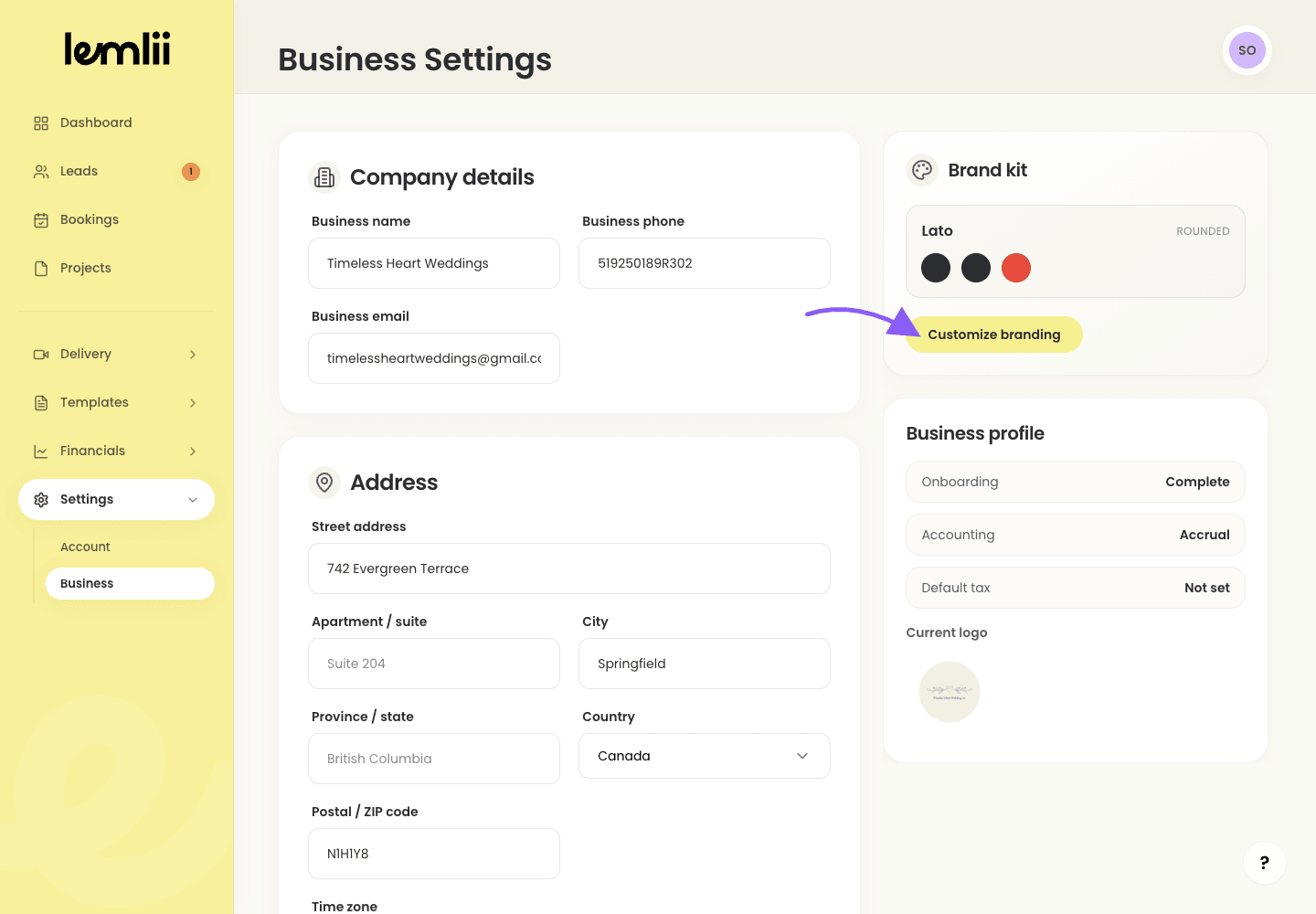
Brand kit card - 1.
Choose fonts and shapes
Under Typography & Shape, choose the Primary font and interface shape that match your brand and remain readable.
Upload logos for light and dark surfaces
Upload a Light Surface Logo for inquiry forms, questionnaires, contracts, and file links.
Upload a Dark Surface Logo for dark gallery backgrounds.
Preview your client pages
- 1.
Switch between Inquiry, Questionnaire, Contract, Gallery, and Link. Check the logos and buttons in each preview.
- 1.
Brand elements managed elsewhere
Contract header imagery is managed separately from Templates > Contract.
Check both logos if you use different versions for light and dark backgrounds.
Save and inspect a public page
- 1.
Click Save changes, then open a client page to check your branding.

Public branding check - 1.