
Leads
How to Review a New Inquiry
Open a new lead, review its inquiry details, add internal notes, and choose the next action.
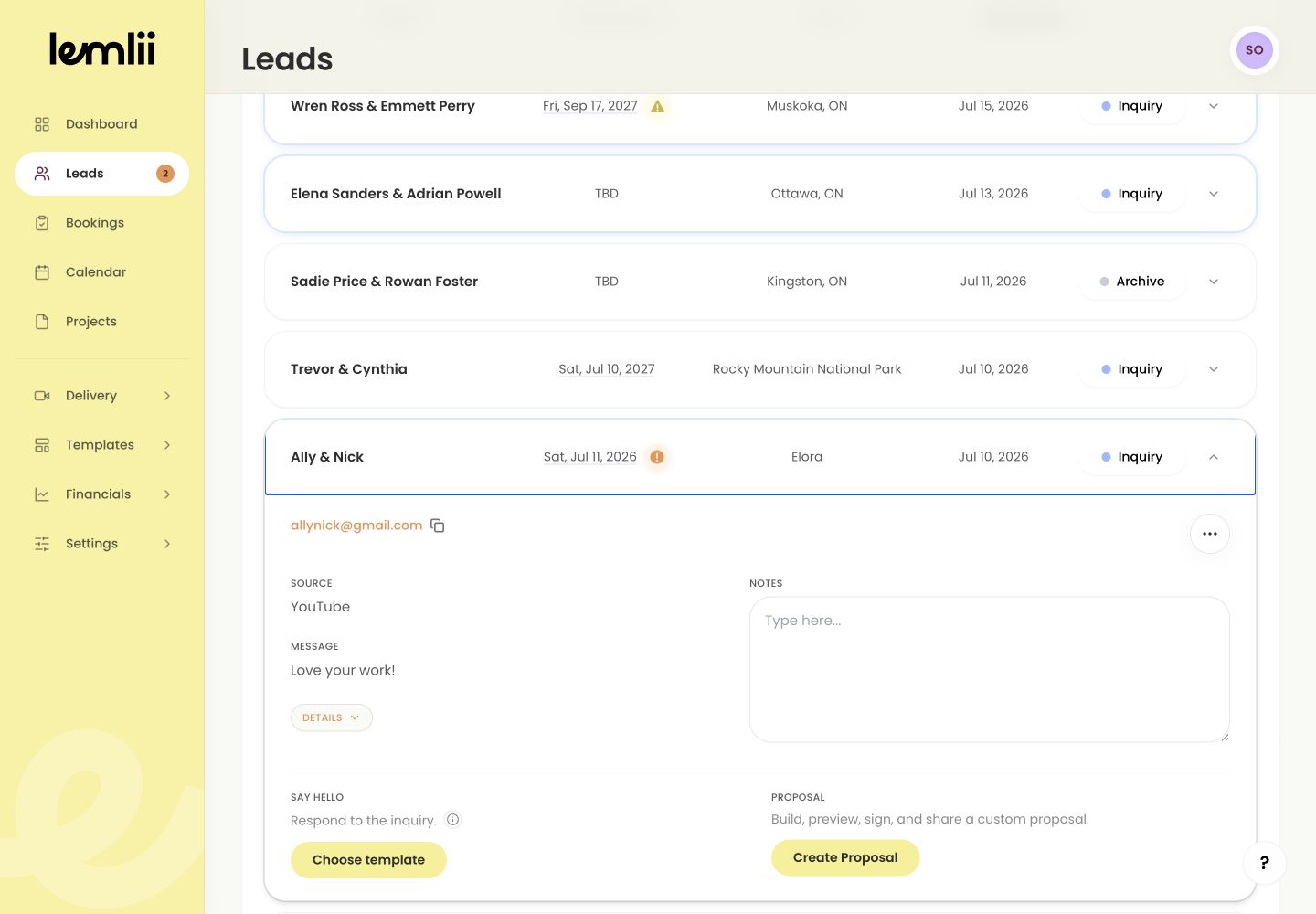
New inquiries appear in Leads, where you can review contact details, the message, source, date warnings, and additional form answers.
Open the Inquiry tab
- 1.
In the left navigation, select Leads.
- 2.
At the top of the Leads page, select Inquiry.
- 3.
If needed, use Search to find the couple by name or another visible detail.
- 4.
Select the lead row to expand the inquiry profile.
- 1.
Review the inquiry details
Check these details before replying:
- Email: the primary address associated with the inquiry.
- Source: where the couple said they found you.
- Message: the note or request submitted by the couple.
- Wedding date and venue: the event information currently attached to the lead, when supplied.
- Date warning: a Date conflict or Date caution badge when another item may affect availability.
- Details / Additional Details: other answers collected through the inquiry form.
- Inquiry date and status: when the inquiry arrived and its current stage in the lead workflow.
Expanded lead inquiry details Add private context
Use Notes / Internal Notes for private notes. They save when you pause or leave the field. For example:
- A summary of a phone call, consultation, or earlier conversation.
- Availability details or scheduling considerations that are not part of the client’s message.
- Package interests, budget context, or services the couple asked about.
- The promised follow-up and who on the team is responsible for it.
Choose the next action
Depending on what you need to do:
- Choose template: prepare a manual email response using the appropriate message.
- Create Proposal: begin pricing when the inquiry is ready for a proposal.
- Edit lead: correct the couple, contact, venue, date, or other lead information.
- Change status: move the inquiry to the stage that accurately reflects the conversation.
Confirm the inquiry is handled
Your notes, status, and proposal actions appear in the expanded inquiry. Opening or changing a new inquiry marks it as read.
Notes
- The manual email workflow opens your default email app; Lemlii does not send it directly from the lead row.
- Opening or changing a new lead marks it as read.