
Settings
How to Connect Stripe
Connect Stripe from Business Settings so clients can pay proposals and invoices by credit card.
Connect Stripe to accept credit card payments on proposals and invoices.
Start in Business Settings, then sign in to Stripe or create an account.
Open the Stripe connection section
Open the connection settings:
- 1.
In the left navigation, expand Settings.
- 2.
Select Business.
- 3.
Scroll to Stripe connection.
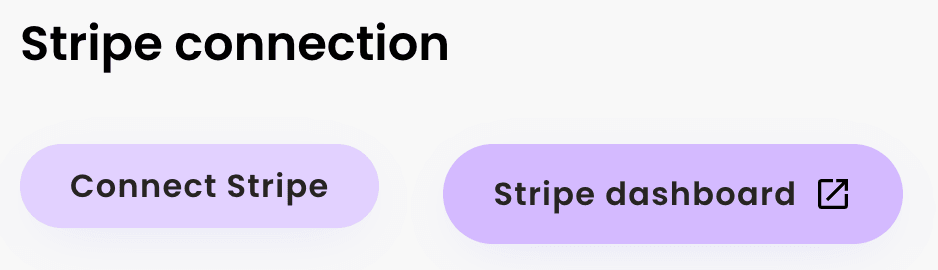
Stripe connection settings - 4.
Review the status and the available connection controls before continuing.
- 1.
Start or refresh the connection
The available buttons depend on your connection status:
- Connect Stripe: begin setup when no account is connected.
- Reconnect Stripe: refresh the connection or choose the correct account when Lemlii asks you to reconnect.
- Stripe dashboard: open the connected Stripe account in a separate tab after setup.
Complete the Stripe setup window
Follow the setup prompts in Stripe.
- 1.
Select Connect Stripe or Reconnect Stripe.
- 2.
Sign in to your Stripe account or create one.
- 3.
Complete the requested account and payout information directly in Stripe.
- 4.
Continue until Stripe confirms that you can return to Lemlii.
- 5.
Return to the Stripe connection section and review the new status.
- 1.
Check the connection status
Stripe may need more information before you can accept payments, even after connecting.
- A connected status confirms that Lemlii is linked to the selected Stripe account.
- If a setup message remains, complete the missing information in Stripe.
- A reconnect option is used when the connection must be refreshed or corrected.
Set the default for new documents
Choose whether new proposals and invoices accept credit cards by default.
- 1.
Locate Accept credit cards by default.
- 2.
Turn it on to enable card payments on new proposals and invoices.
- 3.
Leave it off to enable card payments individually.
- 4.
Save or confirm the setting shown by Lemlii.
- 1.
Review the setting on each proposal or invoice
You can change this setting on each proposal or invoice.
- Open the proposal or invoice before sharing it.
- Turn Accept credit card on or off for this client.
- If card payments are on, preview the proposal or invoice to check that the payment button appears.
- If it is missing, recheck both the connection status and the document’s own setting.
Credit-card setting on a client document When the setup is complete
Once Stripe is ready, create an invoice and check its card-payment setting before sharing it.
Notes
- Use Reconnect Stripe when Lemlii asks you to refresh the connection or when the wrong Stripe account was connected.