
Settings
How to Connect Gmail on Mac Using Chrome
Open Lemlii email drafts in Gmail using Chrome on your Mac.
If Send email opens Apple Mail, use these settings to open Gmail in Chrome instead.
You’ll change one setting in Mail, then allow Gmail to open email links in Chrome.
Before you start
You’ll need Apple Mail and Google Chrome for this setup.
- Use the Chrome profile where you normally access Gmail.
- Sign in to the Gmail inbox that should open when Lemlii prepares an email.
- These settings apply to email links on this Mac.
Make Chrome the default email reader on your Mac
First, set your Mac to open email links in Chrome.
- 1.
Open the Mail app. You can press Command + Space, type Mail, and press Return.
- 2.
From the menu bar, choose Mail > Settings, or press Command + comma.
- 3.
Open the General tab.
- 4.
Find Default email reader and open its menu.
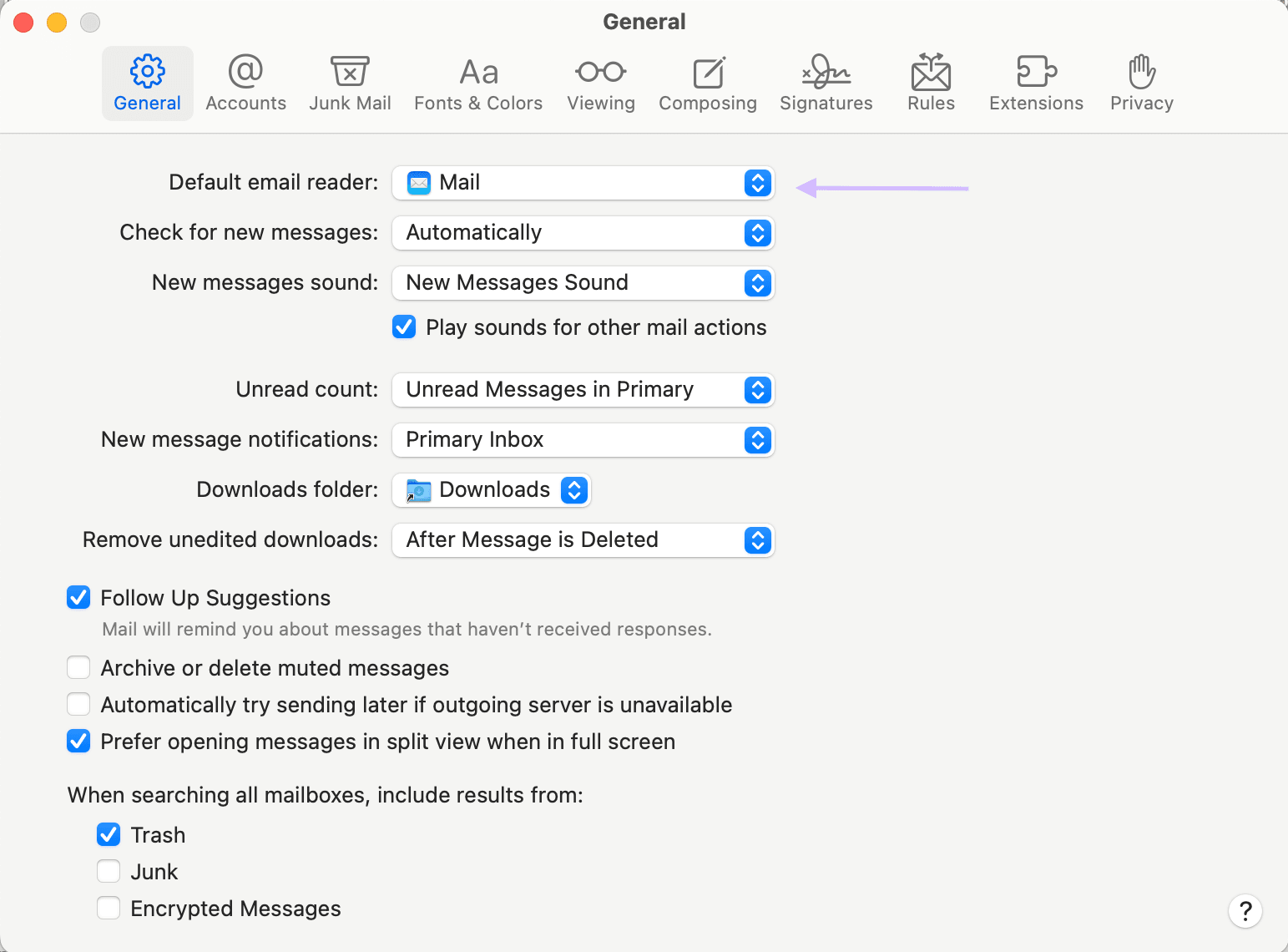
Default email reader in Apple Mail settings - 5.
If Google Chrome is listed, select it. Otherwise, choose Select….
- 6.
In the Applications window, find and select Google Chrome.
- 7.
Choose Select to confirm Chrome as the default email reader.

Google Chrome selected in the macOS Applications window
- 1.
Allow websites to handle email links in Chrome
Next, allow Gmail to request permission to open email links.
- 1.
Open Google Chrome.
- 2.
Choose the three-dot menu in the upper-right corner, then choose Settings.
- 3.
Choose Privacy and security in the left navigation.
- 4.
Choose Site settings.

Privacy and security settings in Chrome - 5.
Open Additional permissions.
- 6.
Choose Protocol handlers.
- 7.
Select Sites can ask to handle protocols.
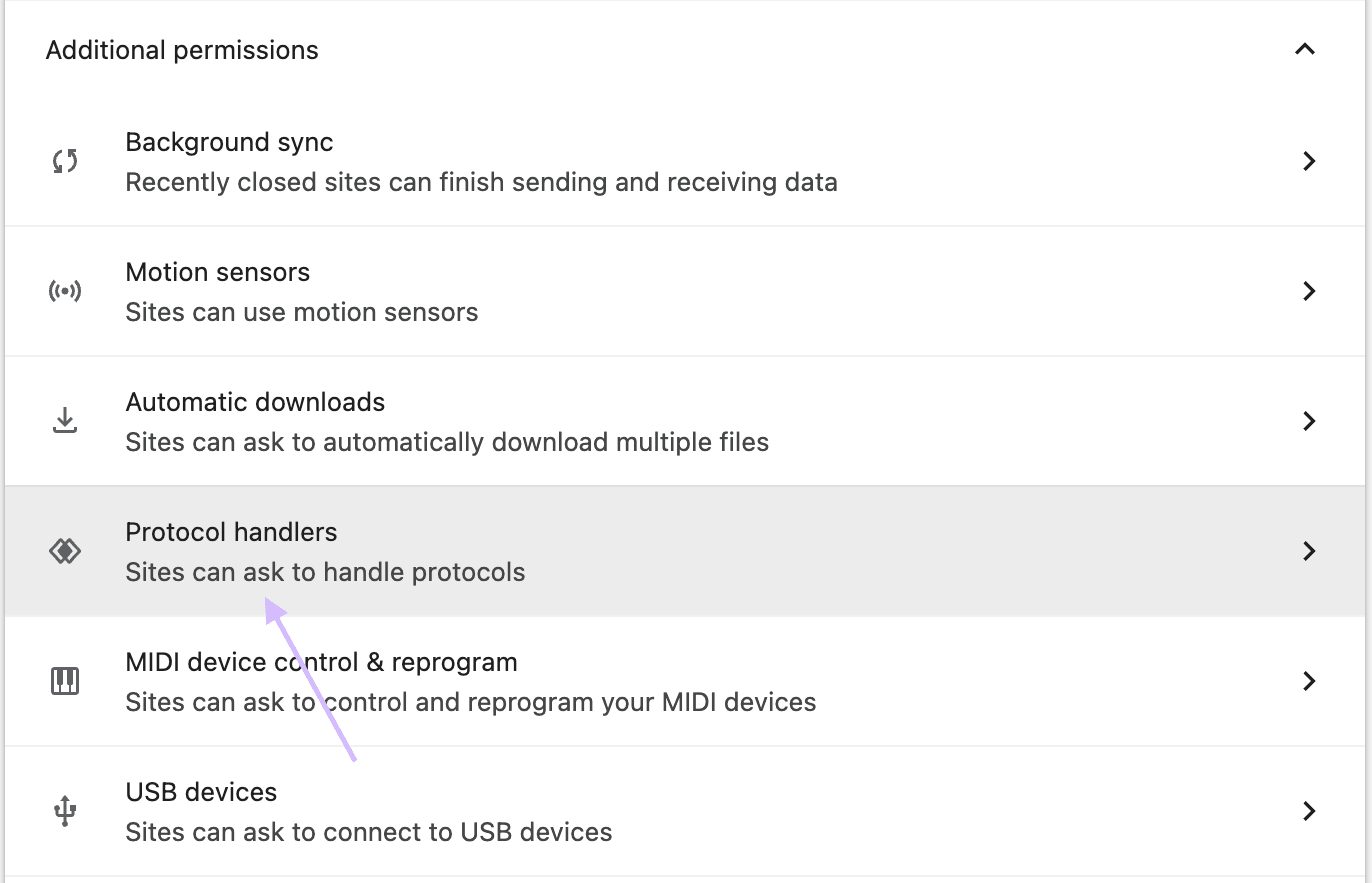
Protocol handlers permission in Chrome
- 1.
Let Gmail open email links
Give Gmail permission to open the draft:
- 1.
Open your Gmail inbox in Chrome.
- 2.
Look at the right side of the address bar for the protocol-handler icon, which resembles two overlapping diamonds.
- 3.
Choose the protocol-handler icon.
- 4.
When Chrome asks whether to allow mail.google.com to open email links, choose Allow.
- 5.
Choose Done to save the permission.
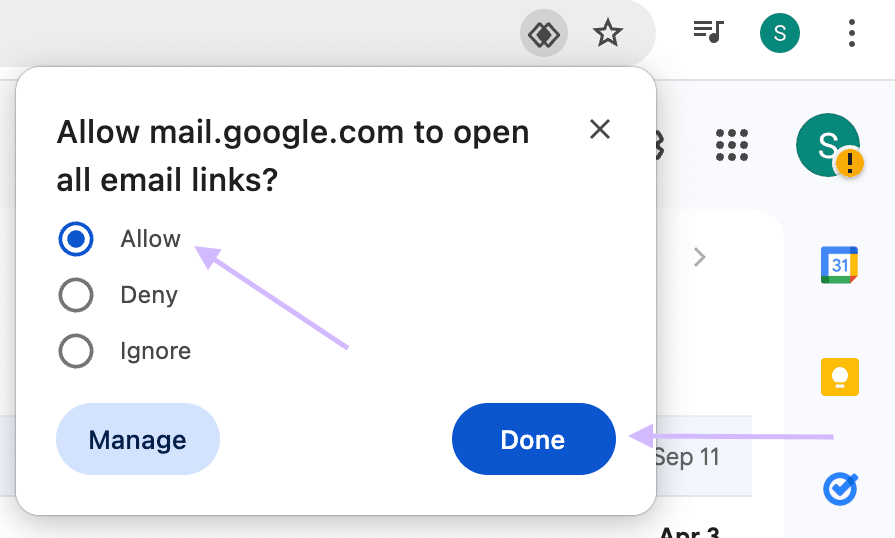
Gmail permission to open email links
- 1.
Test the connection from Lemlii
Open a draft from Lemlii to check that Gmail opens correctly.
- 1.
Open Leads in Lemlii and select an inquiry.
- 2.
Choose Send email.
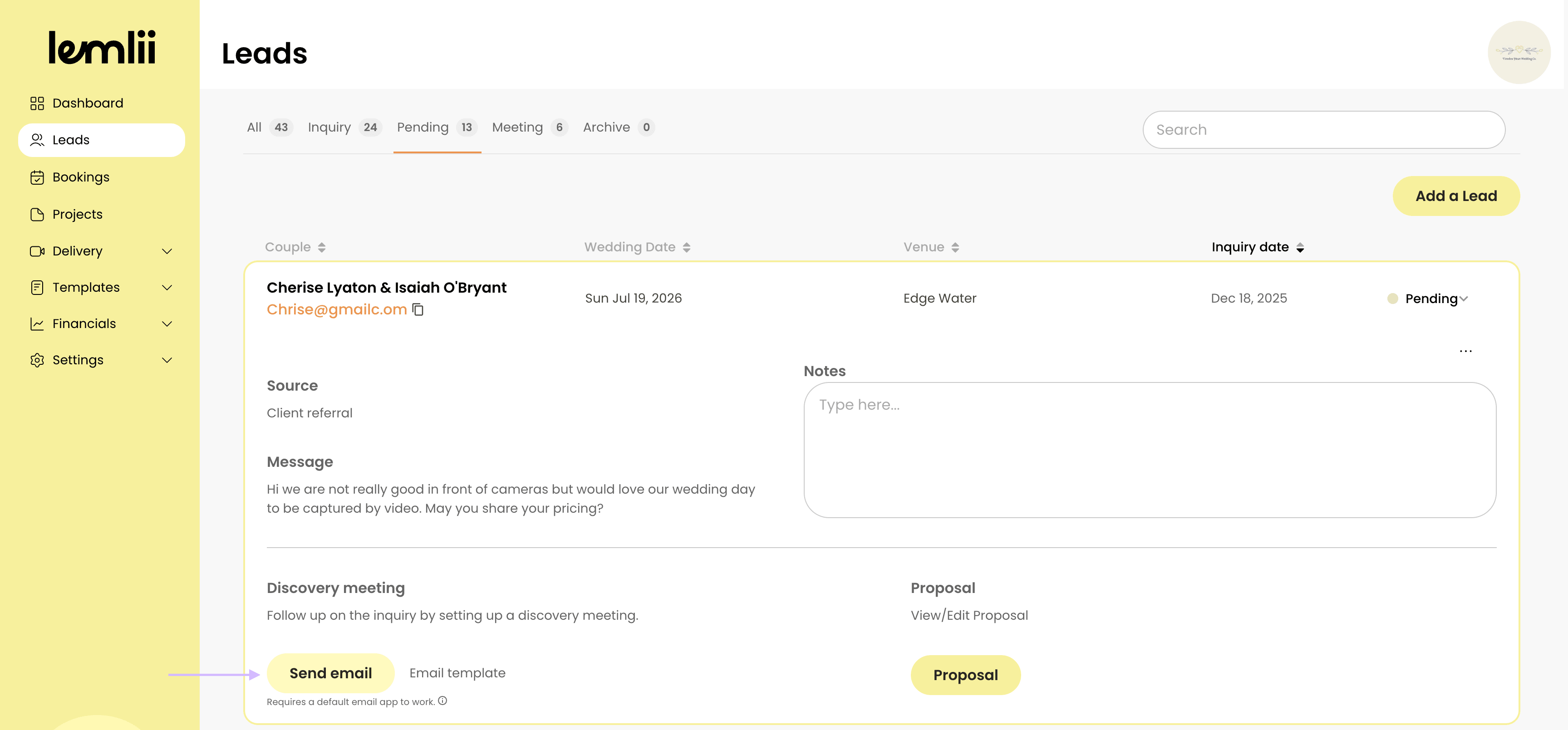
Send email action on a Lemlii lead - 3.
Choose the reply template that matches the situation.
- 4.
Check that Gmail opens with the recipient and message filled in.
- 1.
If the wrong app still opens
Check that Chrome is your default email reader, then check the Chrome and Gmail permissions above.
- If you don’t see the diamonds icon, Gmail may already be allowed. Check Chrome Settings > Privacy and security > Site settings > Additional permissions > Protocol handlers.
- If the wrong Chrome profile opens, repeat the Gmail setup in the profile you use for client email.
- Close the test draft without sending it.
Notes
- Send email opens a draft. Check the recipient and message in Gmail before sending.