
Automations
How to Send a Manual Lead Email
Prepare a personalized lead reply and open it in your default email app.
The Send Email action on a lead prepares a message from a lead-reply template.
Lemlii opens the result as a draft in your device’s default email app; it does not send the email itself.
Before choosing a reply
Check the lead’s email address and your availability.
You will send the draft from your email app.
Open the lead
- 1.
Open Leads, find the correct inquiry and email address, and click Send Email on that lead.
Send Email on a lead - 1.
Choose the reply that matches availability
- 1.
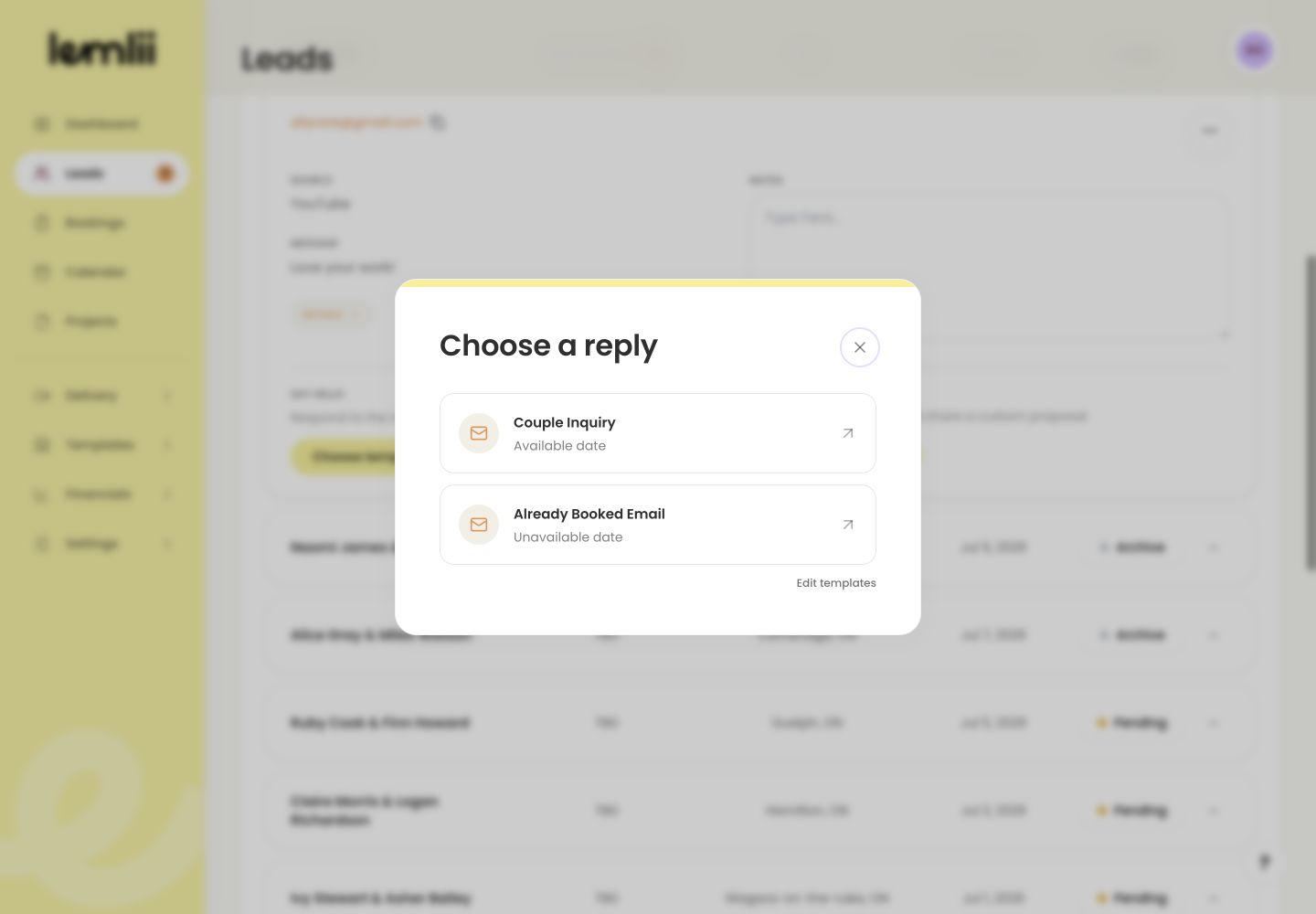
In Choose a reply, select the template that matches the situation.
- 2.
Couple Inquiry is labelled Available date and Already Booked Email is labelled Unavailable date.
- 1.
Personalize and send from your email app
Your default email app opens with the recipient, subject, and body filled in.
Personalize the wording, confirm the recipient, and send from the email app.
- Allow pop-ups if the email draft does not open.
- Configure which app handles email links in your browser or operating system if the wrong email app opens.
Record the follow-up in Lemlii
- 1.
Return to Lemlii and update the lead status or notes so the sent reply and next follow-up are recorded.
- 1.
Final message check
Check the recipient, subject, and message before sending.