
Automations
How to Use Email Templates
Choose an email template, edit the draft, and send it to a client.
Built-in emails are used for lead replies, proposals, and gallery delivery.
Custom messages appear under Your automations and can be connected to reminder timing.
Choose the kind of message
Choose a built-in email or a custom reminder.
Check that Dynamic fields have filled in the right client and job details.
Review the saved wording
- 1.
Open Templates > Automations and choose a message under Built-in emails or Your automations.
- 2.
Review its subject, body, and Dynamic fields.
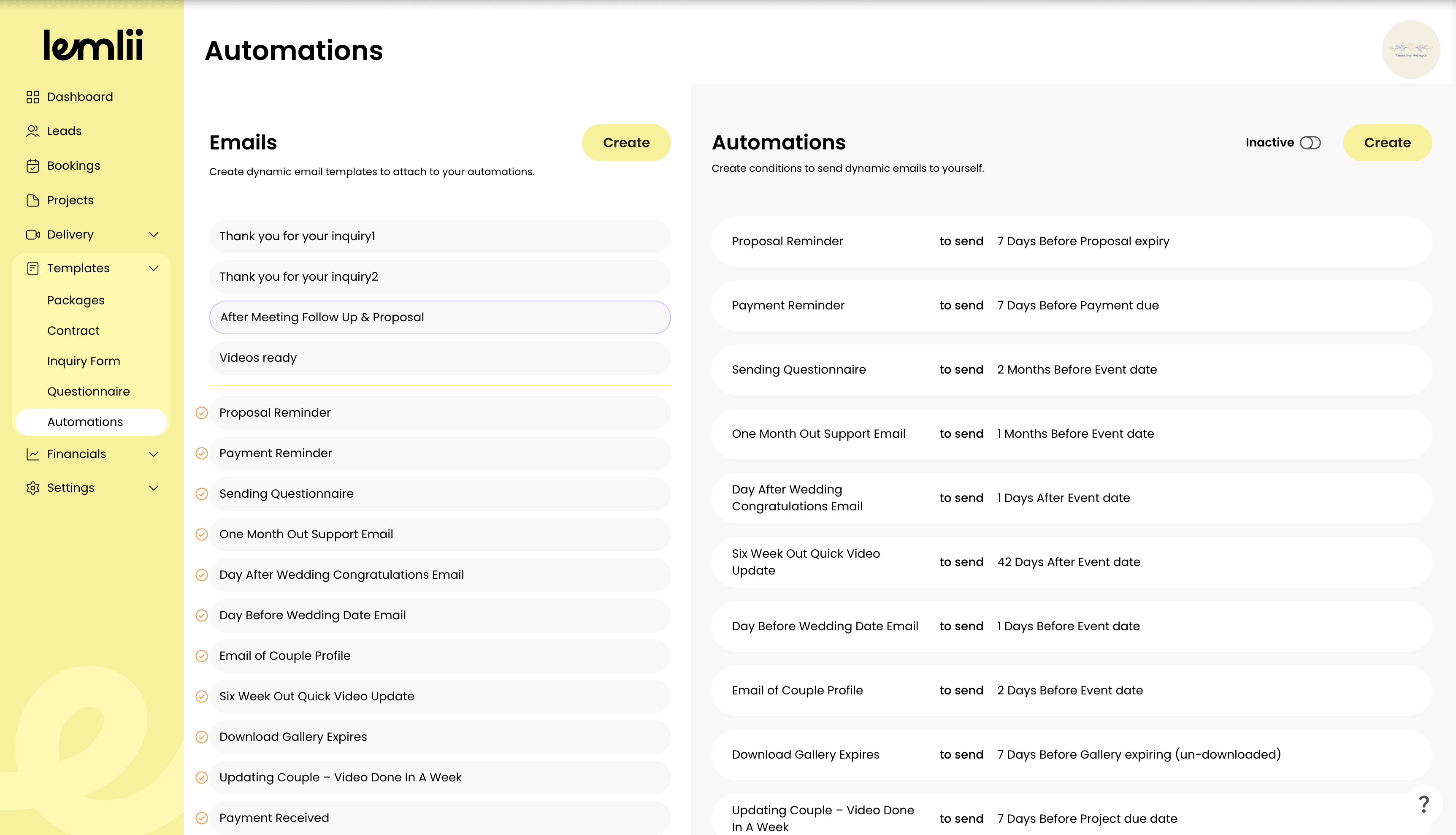
Built-in and custom emails - 1.
Option: use a built-in email
Open the action you need, such as Send Email on a lead.
Choose the reply and review the draft in your default email app before sending.
Option: schedule a custom email
Under Your automations, select Add timing and choose the email for the timing rule.
When the rule runs, Lemlii sends the prepared message to your account email for review.
Review dynamic client details
Dynamic fields use the current client, booking, proposal, invoice, questionnaire, or delivery details available for that message.
Check the client details before sending.
Check your email template
Check the built-in email draft before sending.
Check the custom email and timing under Your automations.