
Proposals & Contracts
How to Add a Contract to a Proposal
Review the contract template inside a proposal and make proposal-specific changes when required.
The proposal loads your reusable contract template and merges the current client and event details into it.
Begin with the reusable contract
To change wording for future proposals, edit Templates > Contract before creating the proposal.
Open the contract inside Proposal Preview
After adding pricing:
- 1.
Create or edit the proposal from the lead.
- 2.
Choose the collection, package, and any additional items.
- 3.
Select Next to open Proposal Preview.
- 4.
Find the Contract section and select Review.
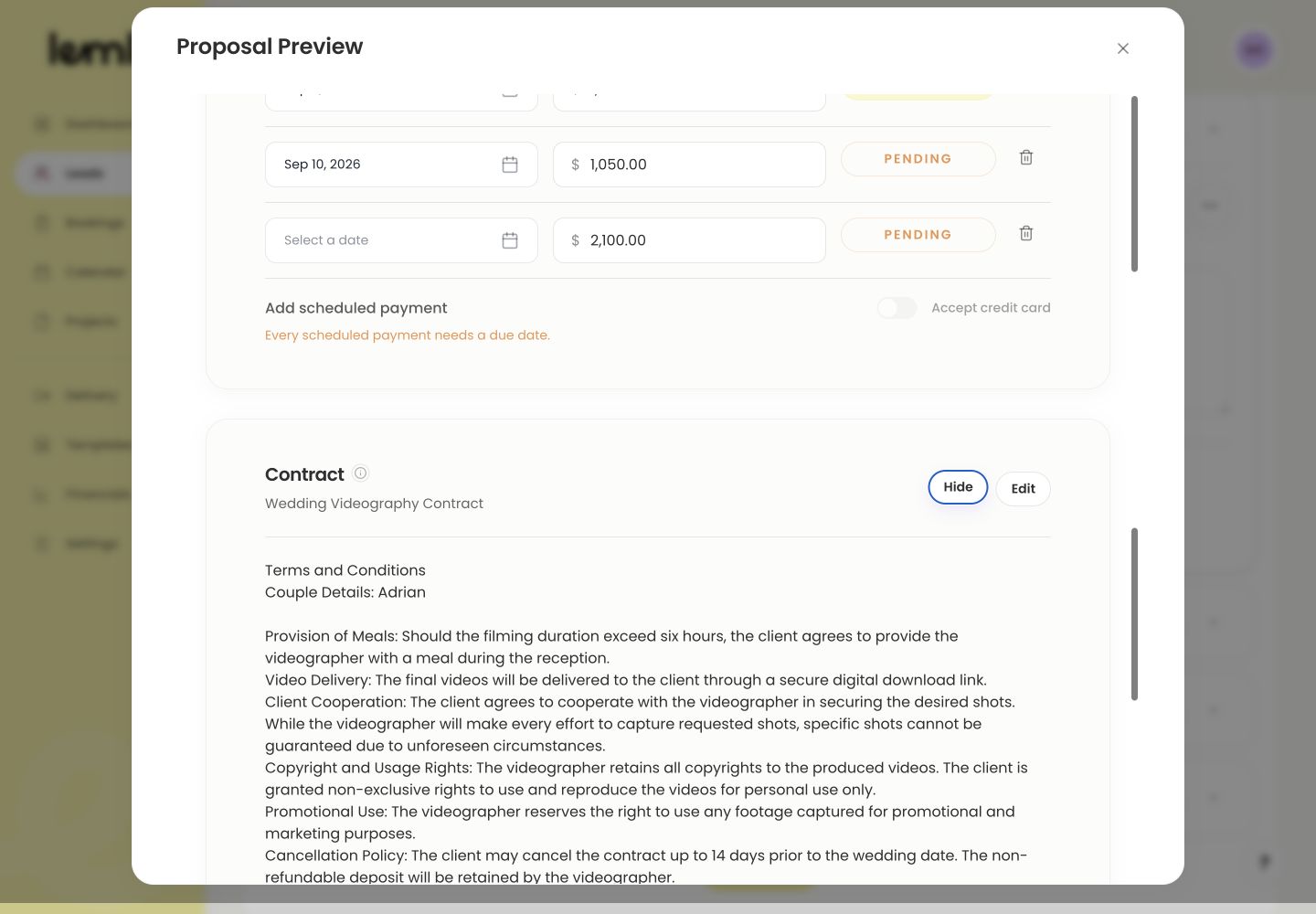
Contract Review and Edit controls - 1.
Read the contract before changing it
Check the contract and client details. Edit it here if this client needs different terms.
- Names and event details belong to the correct client.
- The services and deliverables match the proposal investment.
- Responsibilities, payment terms, and cancellation language are the intended terms.
- Your business information and signature area are correct.
Make a change for this proposal only
These edits apply only to this proposal.
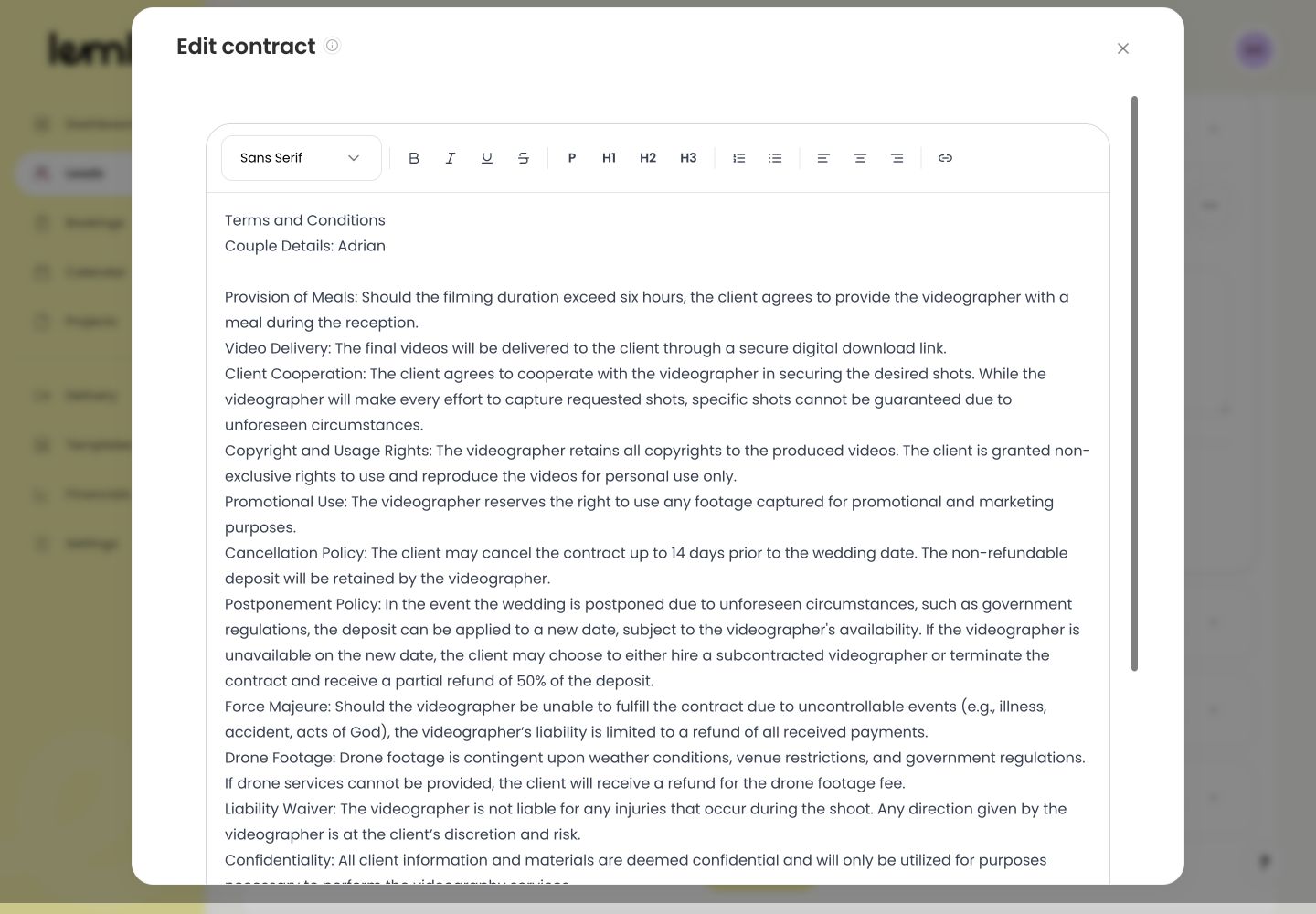
Proposal-specific contract editor - 1.
Select Edit in the Contract section.
- 2.
Update the necessary wording in the contract editor.
- 3.
Read the changed paragraph in context with the surrounding terms.
- 4.
Select Save contract.
- 1.
Review the saved contract
In Proposal Preview, select Review to check the saved contract, client details, payment terms, and business signature before selecting Complete.
Notes
- Editing an already signed contract creates a revised version and requires the client to re-sign.
- Correct reusable language in the contract template rather than repeating the same per-proposal edit.