
Projects
How to Track Editing Work
Use search, due-date filters, card details, and drag-and-drop to keep edits current.
Use Projects as the editing queue after a shoot has passed.
Cards show the project name, shoot date, due date, and due warning when attention is needed.
Set a useful editing deadline
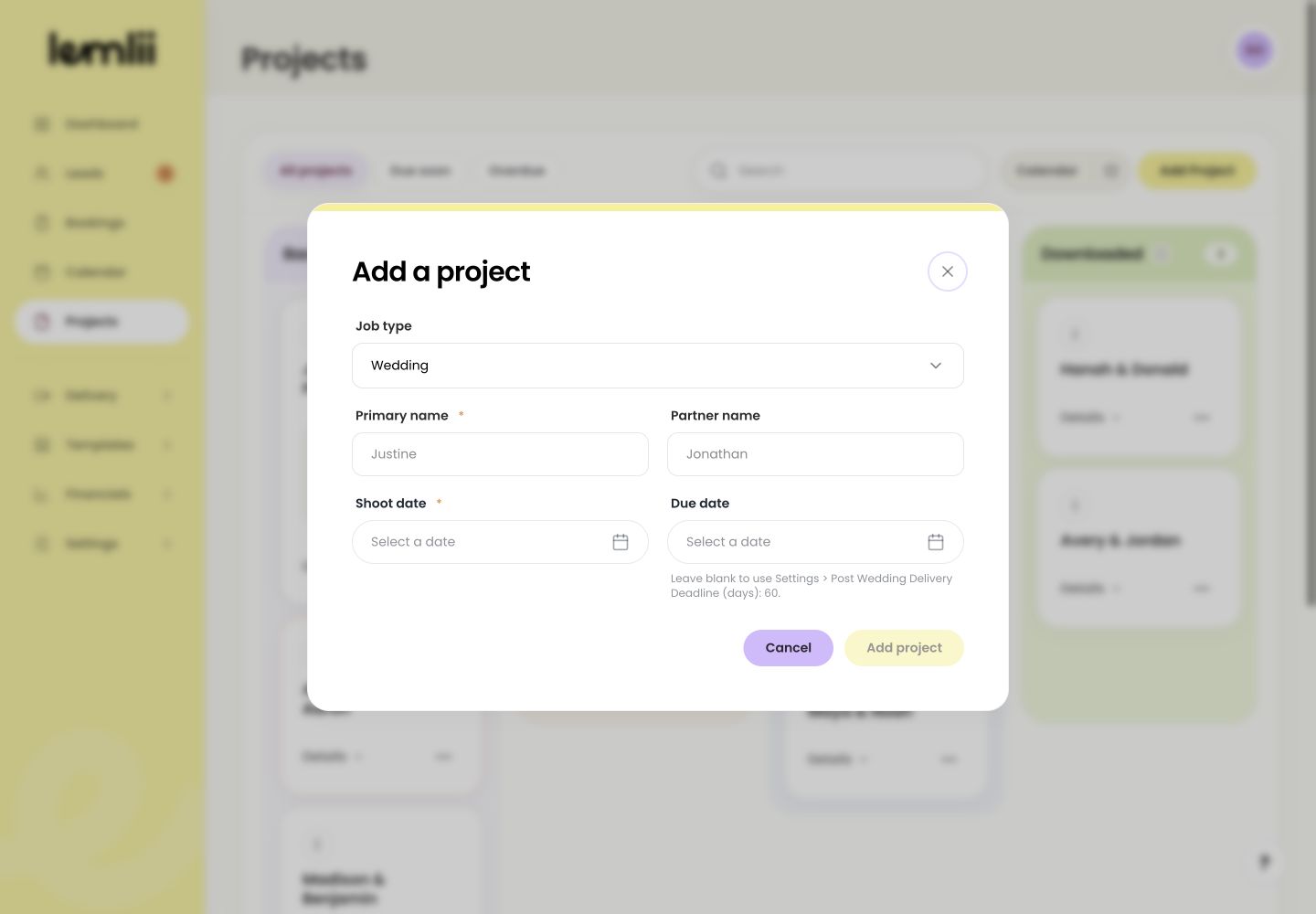
Set Post-wedding delivery deadline (days) in Settings > Business so new work starts with a useful due date.
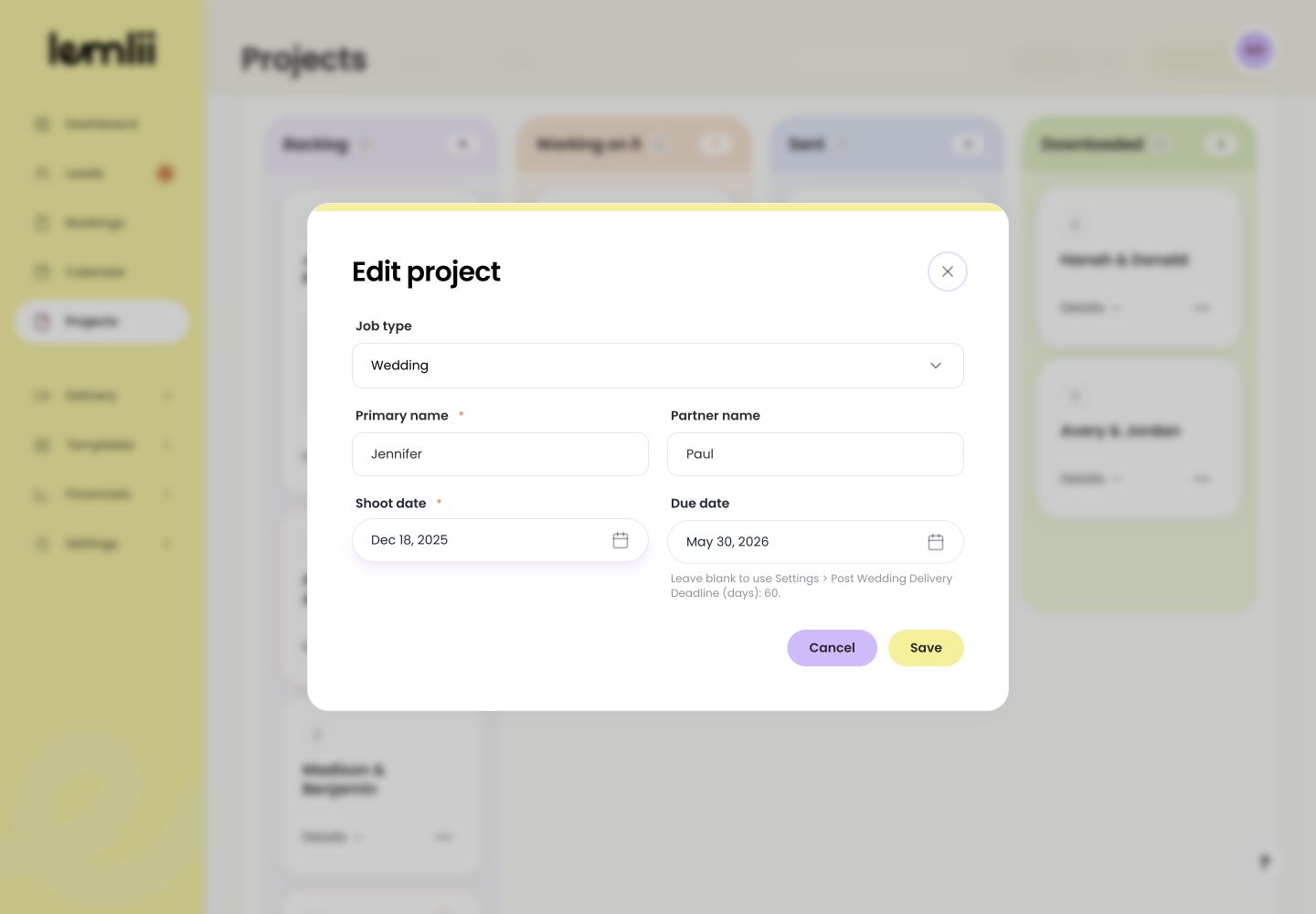
Keep project names and dates up to date.
Find the work that needs attention
- 1.
Open Projects.
- 2.
Use Search and choose All projects, Due soon, or Overdue. Due warnings apply to Backlog and Working on it.
Projects search and due filters - 1.
Review the card before changing it
- 1.
Open a card’s details to check the Shoot date and Due date.
- 2.
Use the card menu and choose Edit when the name or dates need to change.
Expanded project card - 1.
Update the editing stage
- 1.
Drag the card to the column that matches the editing stage.
- 2.
Wait for the card to finish moving before leaving the page.
- 1.
When to remove a project
Choose Remove only when the project should leave the board.
Confirming Remove this project card changes the connected booking status to Past.
- The default due date comes from Post-wedding delivery deadline (days) in Settings > Business, unless the project due date is manually overridden.
Check the updated queue
Open Details to check the updated name and dates.