
Projects
How Projects Move Through Each Status
Learn what each Projects status means and how cards move between columns.
The Projects board shows Backlog, Working on it, Sent, and Downloaded.
Confirmed future bookings remain upcoming and do not appear on this board until their shoot date has passed.
Before a project reaches the board
Keep Shoot date and Due date up to date.
Drag a card when you need to change its status yourself.
Backlog
After a confirmed booking’s shoot date passes, its project moves into Backlog.
A project created directly with Add Project also begins in Backlog.
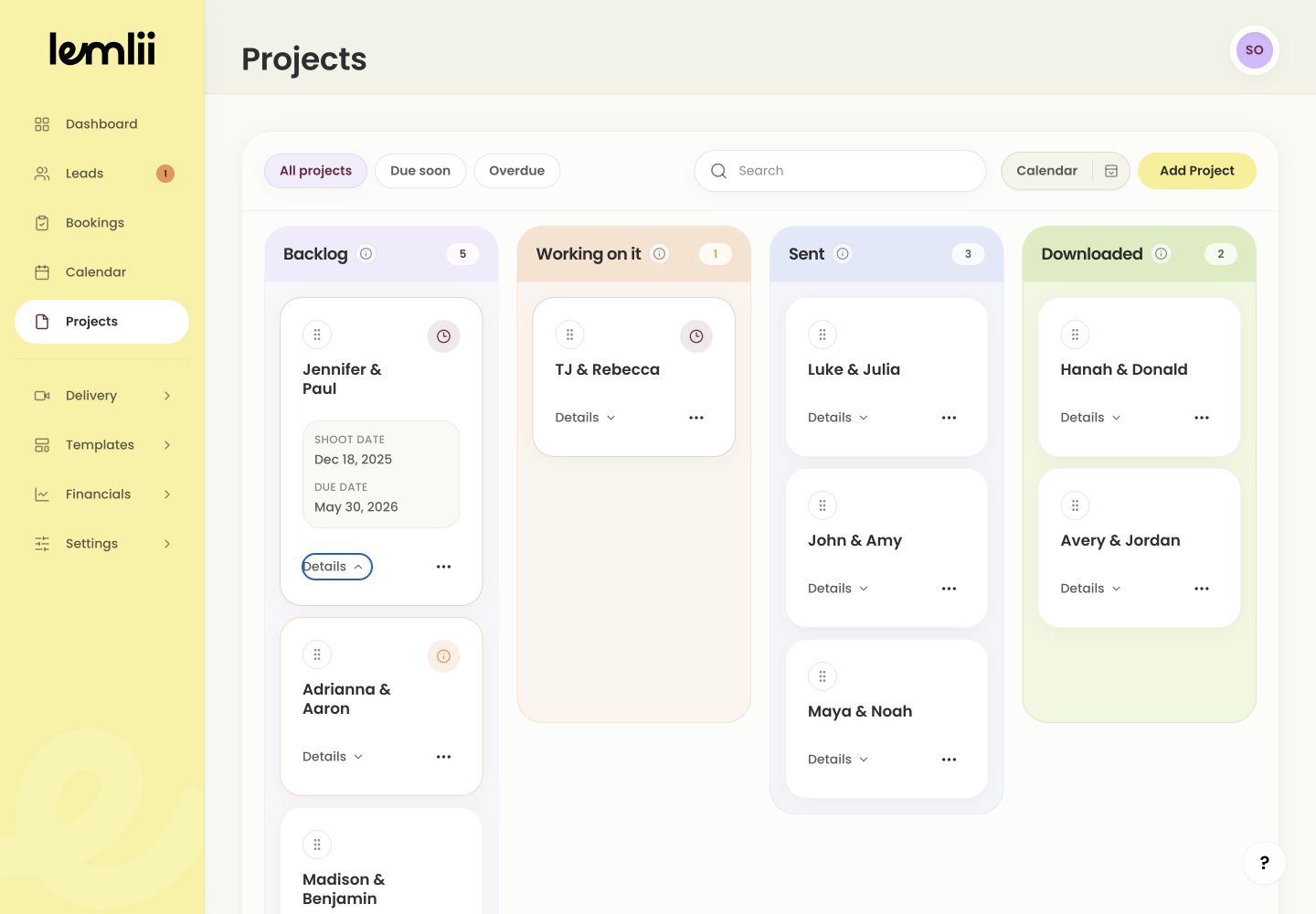
Projects status board Working on it
Lemlii puts the oldest eligible active project in Working on it.
You can also drag a card into this column.
Sent
Copying or emailing a connected gallery link moves the project to Sent.
You can also drag a card to Sent after confirming delivery was shared.
Downloaded
A client download can move the connected project to Downloaded.
You can also drag the card there after confirming delivery is complete. Downloaded projects archive automatically after four weeks.
What filters change
- Dragging a project also updates the connected booking workflow status.
- All projects, Due soon, and Overdue change which visible cards are shown; they do not create new statuses.
Confirm a status change
After moving a card, check that its connected booking has the same status.