
Projects
How to Move a Project to Sent
Record that a finished gallery was shared with the client.
Copying or emailing a connected gallery link moves its project to Sent.
If you shared the files another way, drag the card to Sent.
Finish the gallery first
Check the gallery title, cover, privacy, videos, downloads, and expiry before sharing.
Share the connected gallery
- 1.
Use Share Gallery to copy or email the gallery link.
- 2.
This records the gallery as Sent and moves the connected project to Sent.

Share Gallery action - 1.
If delivery happened another way
Only copy the gallery link when you are ready to send it; copying marks it as Sent.
If delivery happened outside the connected gallery, move the project manually only after confirming the client received it.
Check the Projects board
- 1.
Open Projects and confirm the card appears under Sent.
- 2.
If delivery was completed another way, drag the card to Sent manually.
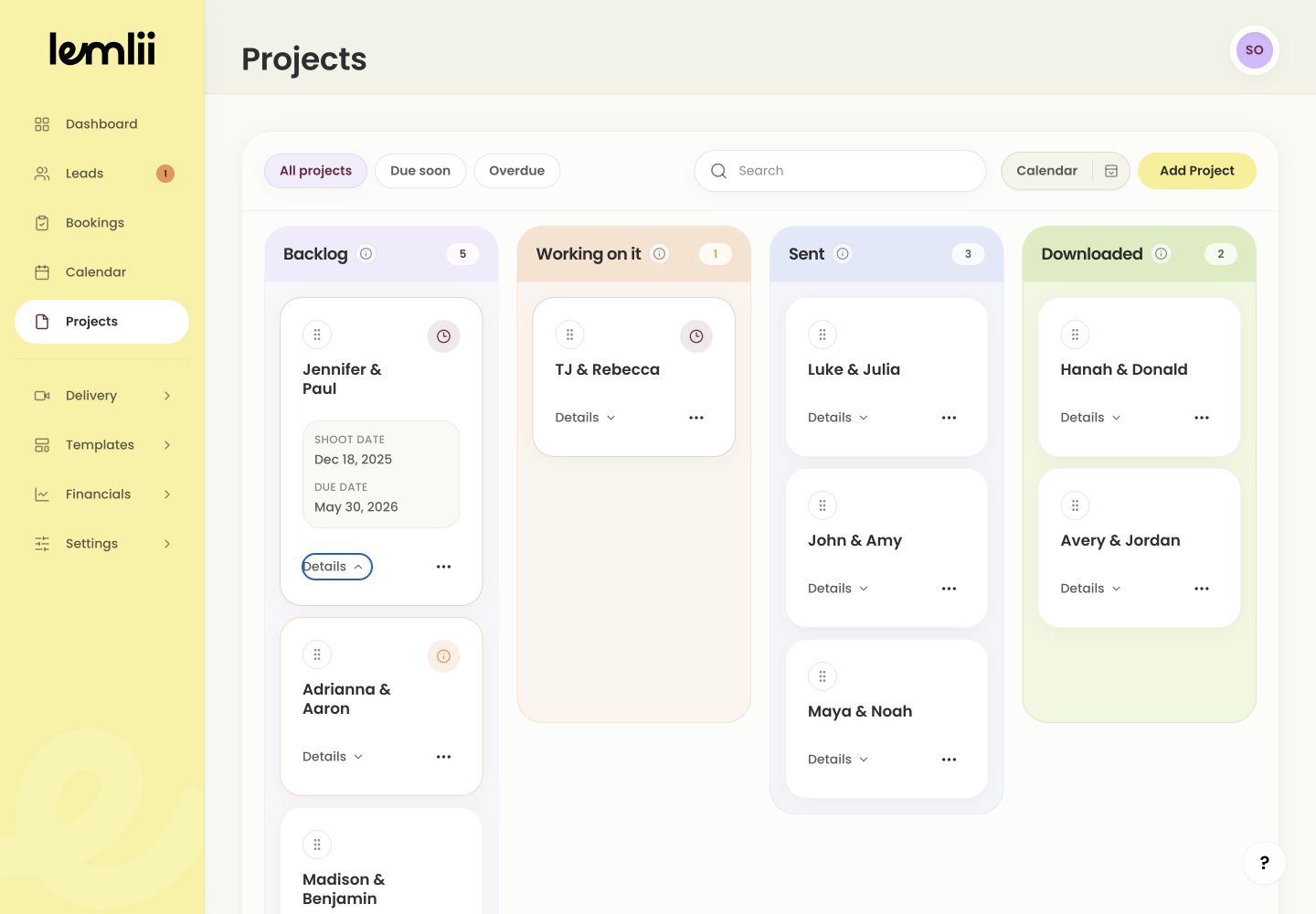
Project in Sent - 1.
Check the shared link
The gallery and connected project should both show Sent.
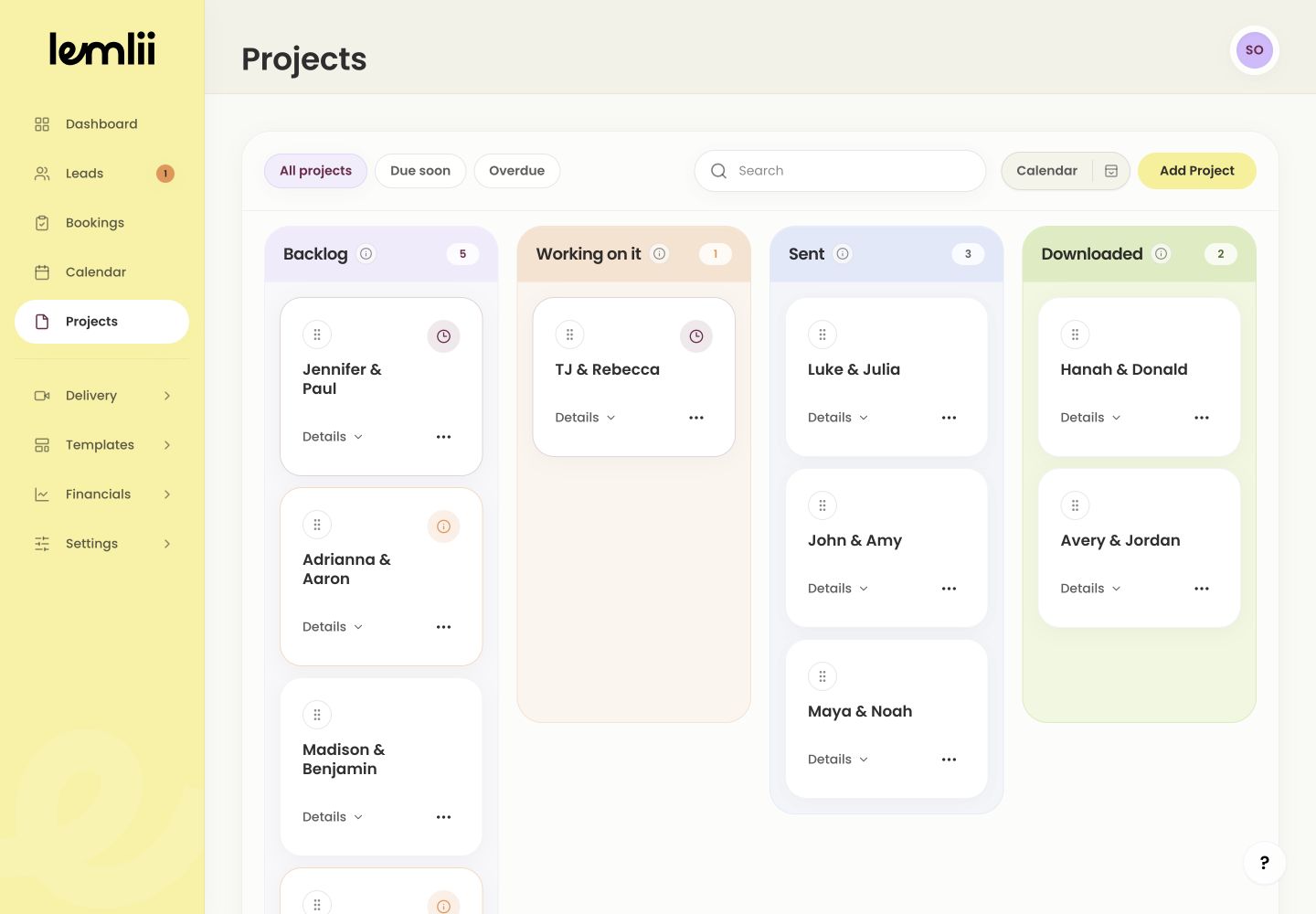
Connected delivery and project Sent states Test the shared link to make sure it opens the right gallery.