
Payments & Financials
How to Review Overdue Payments
Find overdue receivables from Dashboard notifications, invoice details, or Analytics.
A scheduled payment becomes overdue when it remains outstanding after its due date.
Where an overdue payment appears
Check the invoice’s payment schedule for the due date and amount. You can find it through:
- Dashboard > Notifications can list the client under Overdue payments.
- The connected booking’s Invoices section leads to the invoice detail.
- Financial Analytics can help identify a wider pattern, but it is not where the invoice is corrected.
Open the overdue record from Dashboard
- 1.
Open Dashboard.
- 2.
Find Notifications and expand Overdue payments.
- 3.
Select the client row.
- 4.
In the focused booking, open the relevant invoice or overdue scheduled payment under Invoices.
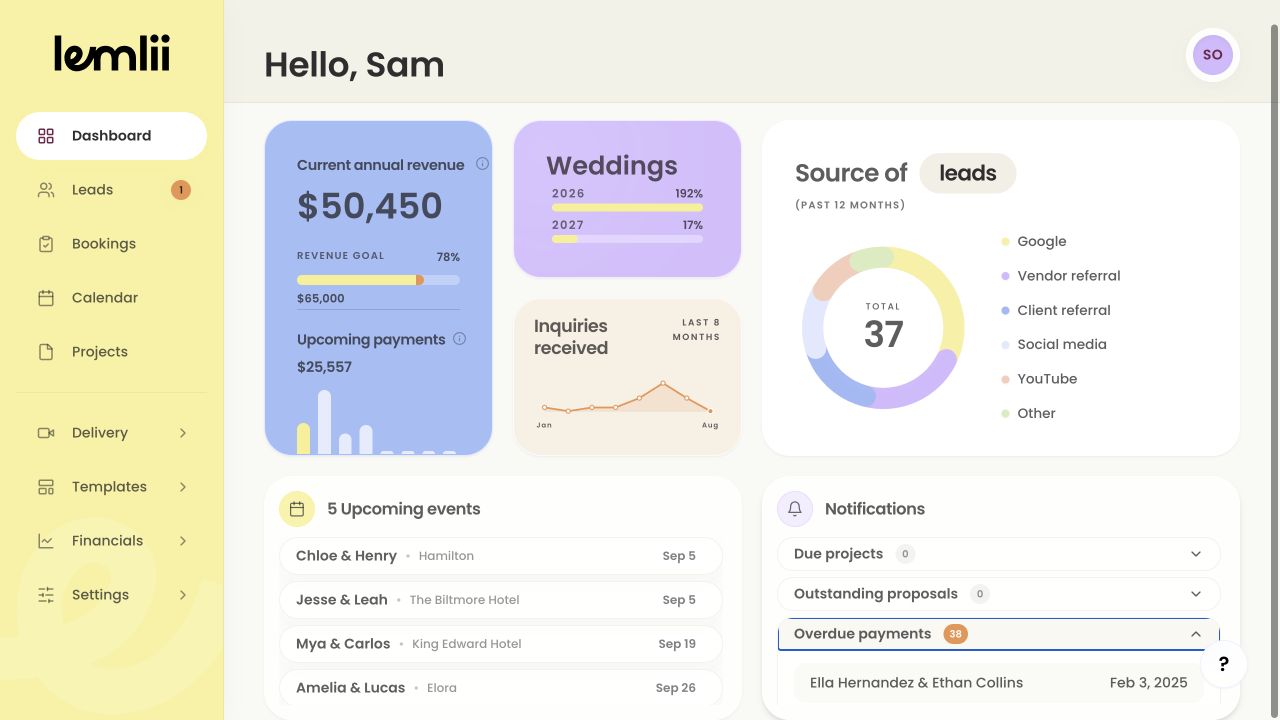
Dashboard overdue payments notification - 1.
Check why the payment is overdue
On the invoice, check:
- Due: the date that has passed.
- Amount: the scheduled amount expected for that row.
- Status: whether the schedule is overdue, partial, or complete.
- Paid: how much has already been recorded.
- Balance: what remains outstanding on the invoice.
- Payment history: whether the money may already have been recorded another way.
Choose the action that matches what happened
- If the client has not paid, leave the balance accurate and follow your client follow-up process.
- If money was received outside online checkout, record the real payment.
- If the client already paid online, do not create a duplicate manual payment; investigate the existing payment entry.
- If the due date itself is wrong, edit the source invoice or proposal schedule when its current payment state permits it.
Record money received outside online checkout
Only record money you have received:
- 1.
Select Record payment on the invoice.
- 2.
Choose the overdue scheduled payment.
- 3.
Enter the actual amount, payment date, and payment method.
- 4.
Select Record Payment.
- 1.
Confirm the source and notification updated
Check Paid, Balance, and Payment history on the invoice. The Dashboard notification clears when the payment is no longer overdue.
Review overdue patterns when needed
Open Financials > Analytics for yearly overdue-payment trends. Follow the detail link to an invoice to make corrections.
Notes
- Do not record a manual duplicate when the client already paid online by credit card.
- Updating a due date requires editing the source invoice or proposal schedule, subject to locks on collected rows.