
Leads
How to Check Date Conflicts
Read booking, blackout, job, and proposal warnings attached to a lead’s wedding date.
Lemlii compares a lead’s wedding date with existing weddings, other jobs, blackouts, and shared proposals.
Date conflict and Date caution
These badges flag possible availability issues:
- Date conflict: an existing item is on the same date.
- Date caution: another proposal or nearby commitment may affect availability, including an item within two days.
- A warning can point to a Wedding booking, Job booking, Blackout, or Proposal sent.
Open the warning details
Inspect every listed item before telling the client the date is available.
- 1.
Open Leads and find the badge beside the lead’s wedding date.
- 2.
Select the Date conflict or Date caution badge.
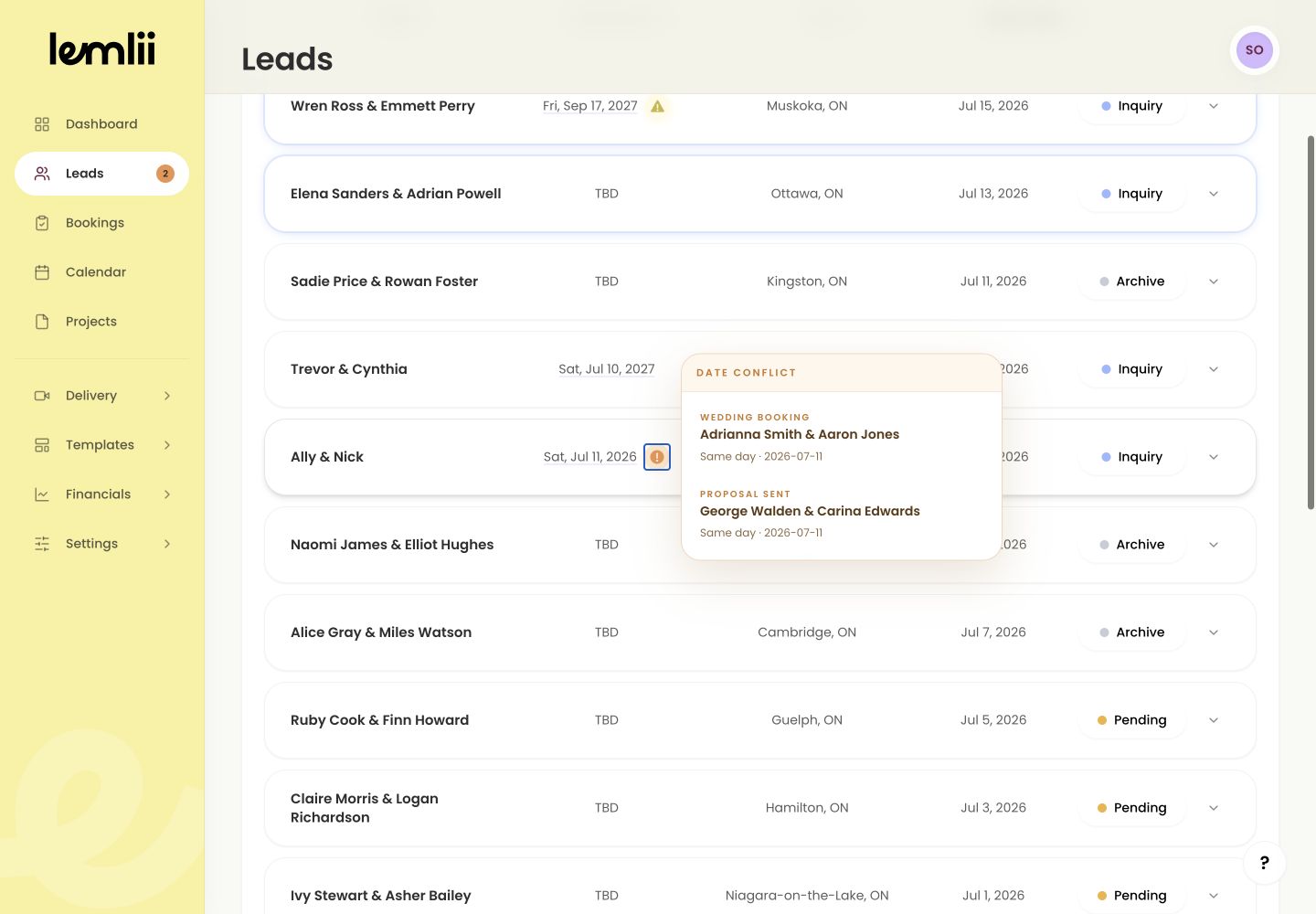
Lead date conflict details - 3.
Read the type and date of each item shown.
- 4.
Select a listed item to open its booking, blackout, or proposal when more context is needed.
- 1.
Compare the commitments
Check whether the warning refers to a confirmed booking, blackout, other job, or shared proposal before promising the date.
Correct an inaccurate lead date
If the lead’s date is wrong:
- 1.
Open Lead actions and select Edit lead.
- 2.
Update Wedding date.
- 3.
Review the booked and blackout markers in the date picker.
- 4.
Select Save changes.
- 5.
Reopen the date badge to check any remaining warnings.
- 1.
When no edit is needed
If the date is correct, keep it and add your availability decision to private notes. Warnings do not prevent saving.
Notes
- A caution is not the same as a confirmed booking, but another client may already have a proposal for the date.
- Warnings inform the decision; they do not prevent saving automatically.