
Getting Started
Lemlii Overview: Where Everything Lives
Learn where the main Lemlii workspace areas live and what each area is for.
Use the left navigation to find your clients, projects, galleries, finances, and settings.
The left navigation contains the main work areas. Expand Delivery, Templates, Financials, or Settings to open their pages.
Find the main navigation
Select a page in the left navigation to open it. Select a group heading to show its pages.
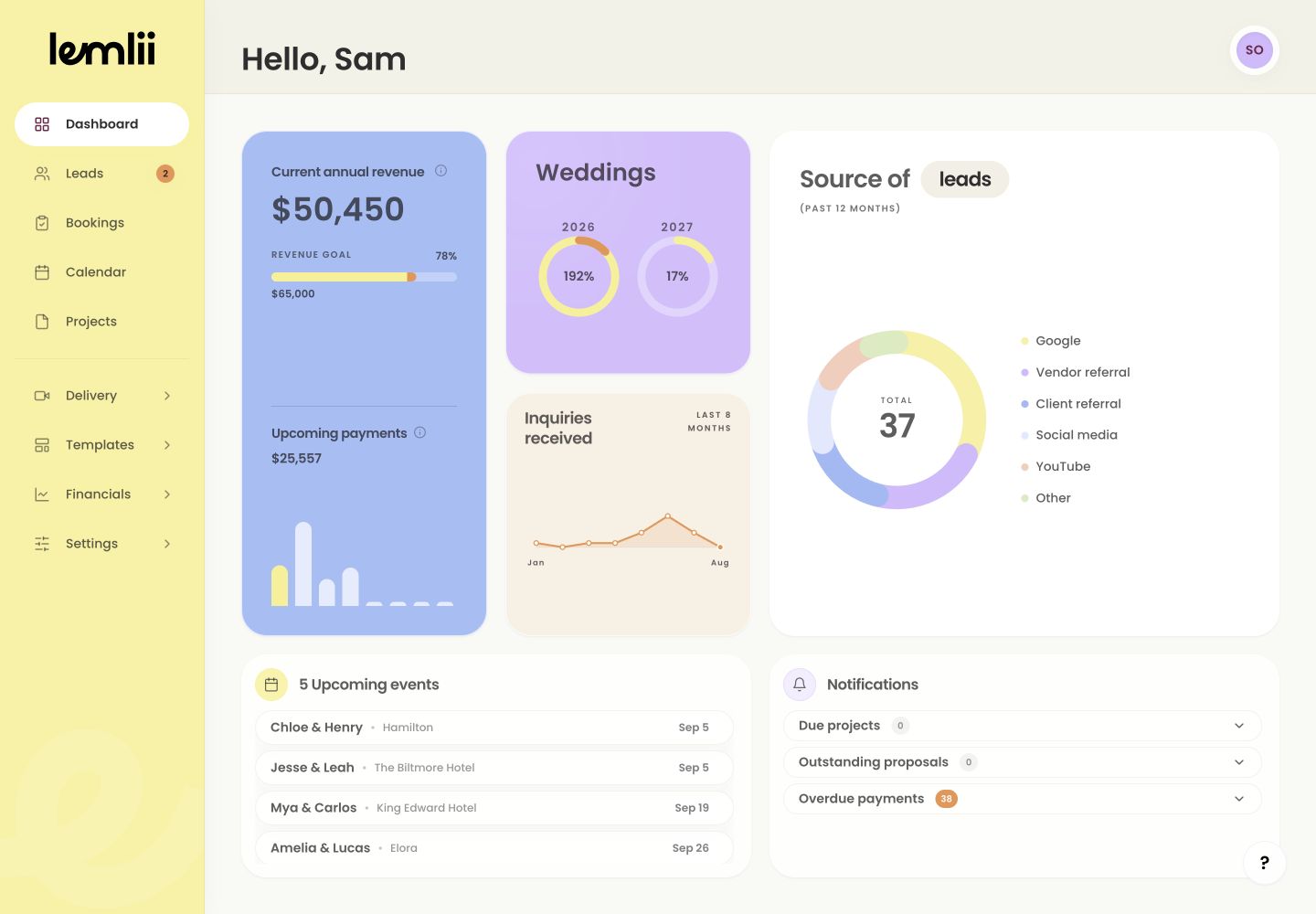
Current Lemlii main workspace navigation Use Dashboard for a business overview
Open Dashboard for annual revenue, goals, inquiries, upcoming events, and items that need attention. Select a linked row to open its details.
Keep client work in the correct stage
Use these areas as work moves from inquiry to delivery:
- Leads: new inquiries and follow-up stages.
- Bookings: confirmed weddings and other jobs.
- Calendar: events, availability, and blackout dates.
- Projects: editing progress and delivery readiness.
Expand grouped workspace areas
Select Delivery, Templates, Financials, or Settings to show its pages. Only one group stays open at a time.
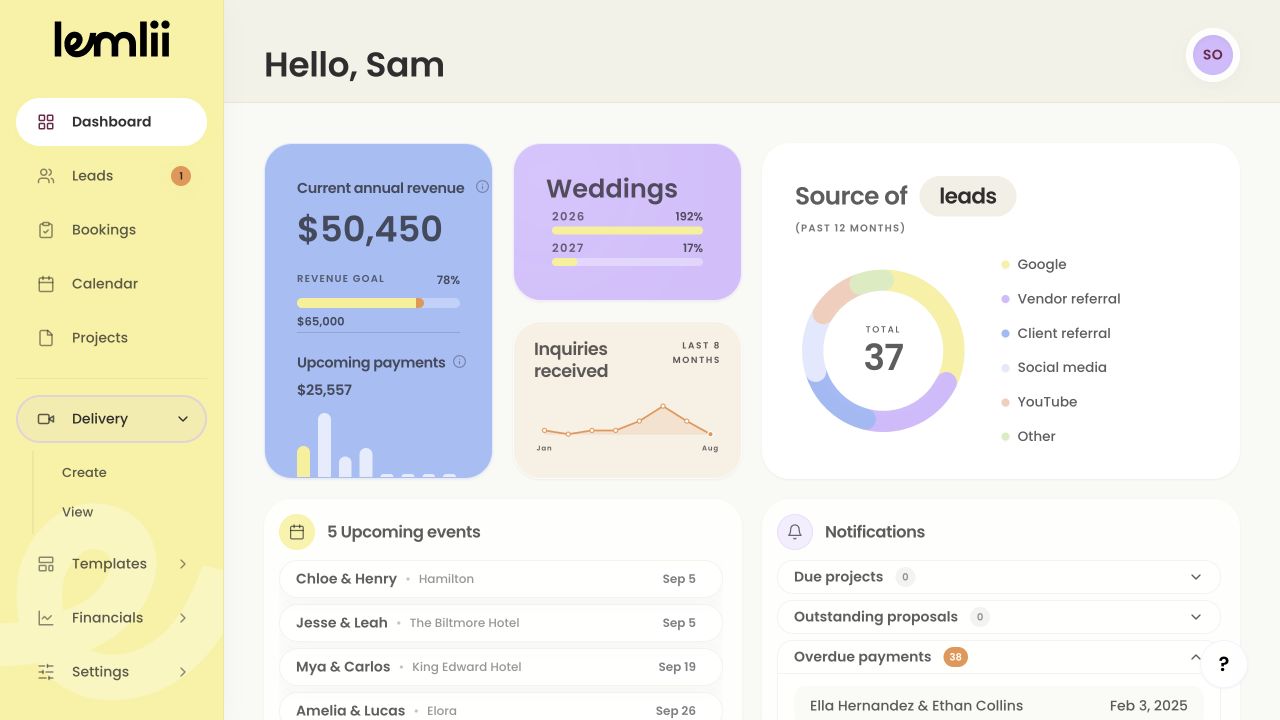
Delivery menu expanded 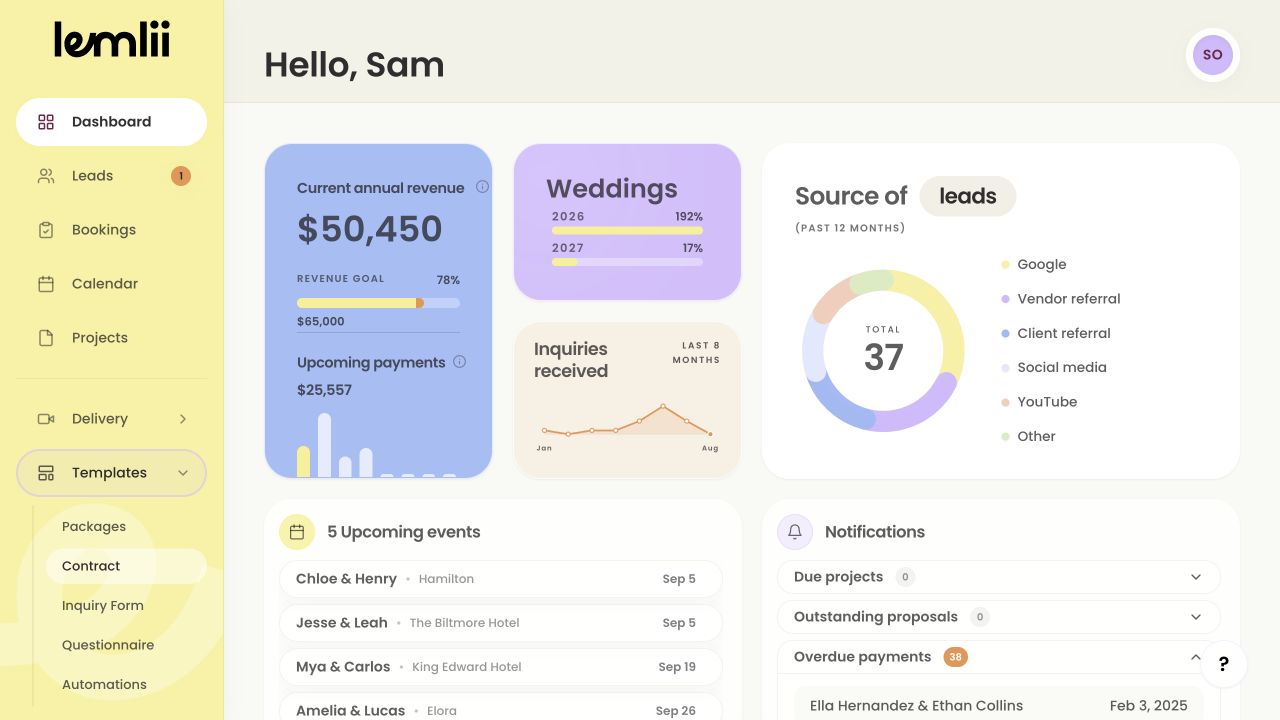
Templates menu expanded 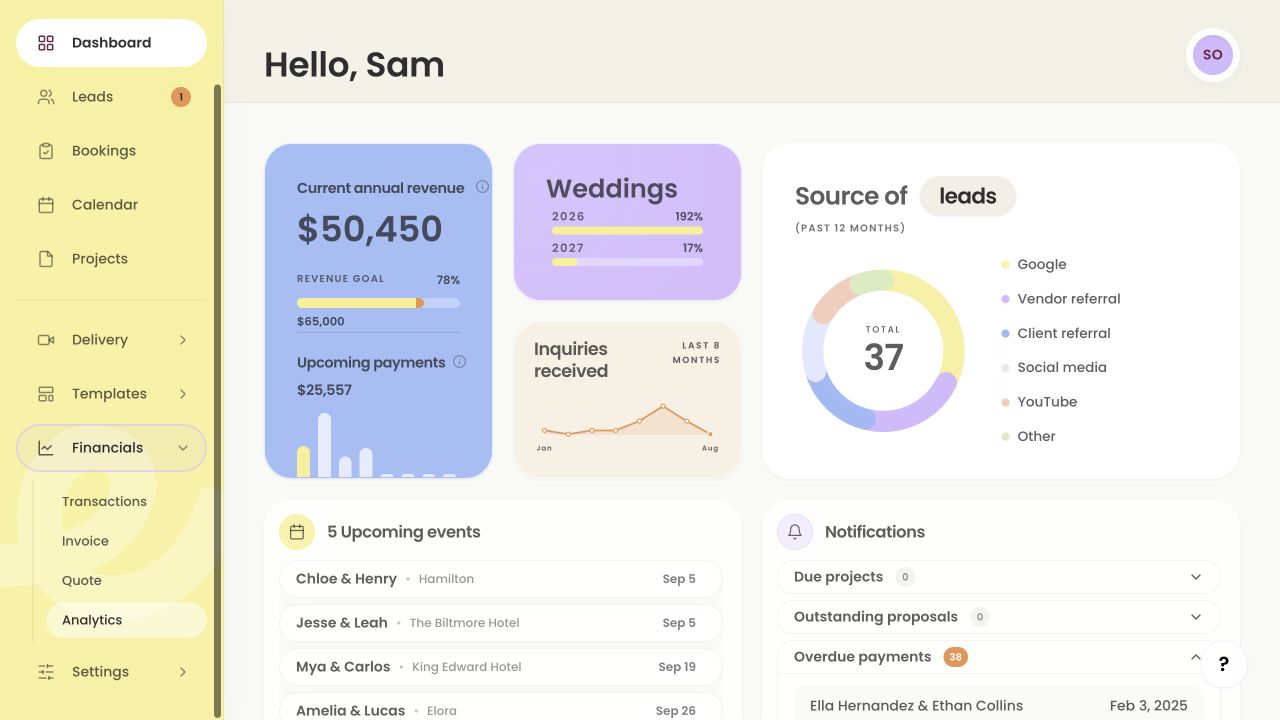
Financials menu expanded 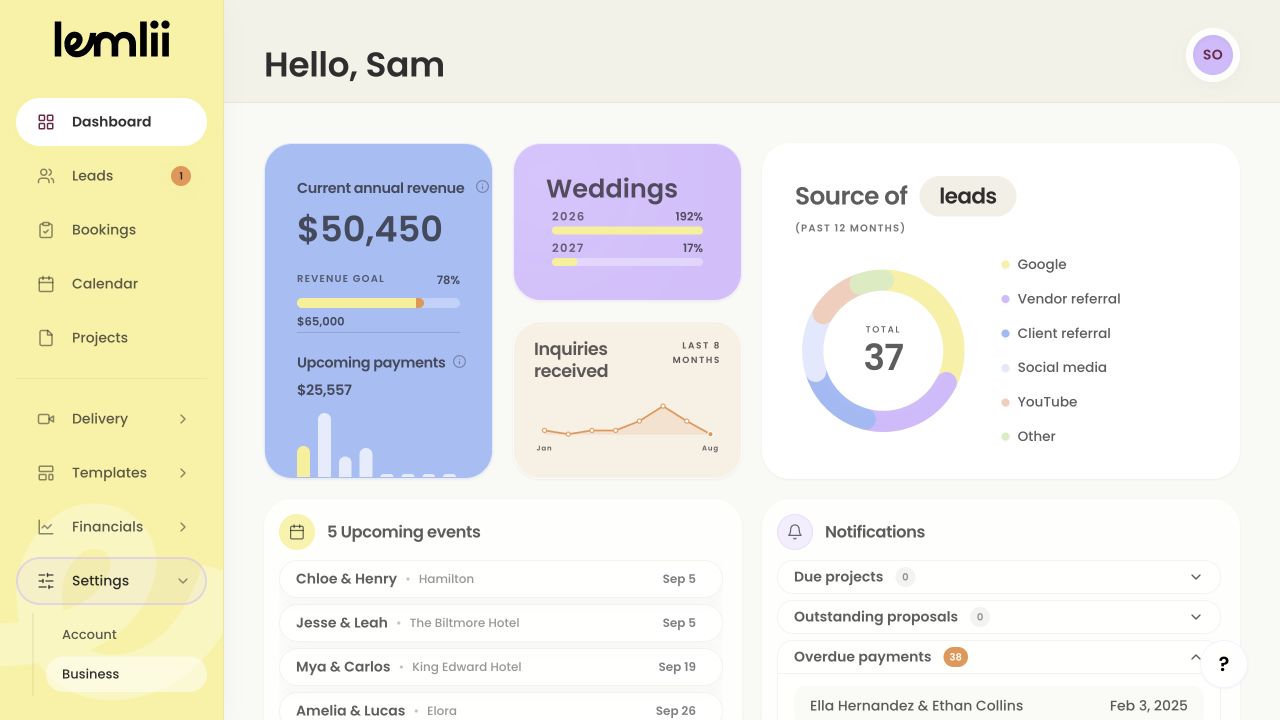
Settings menu expanded Prepare reusable client materials
Use Templates for packages, contracts, inquiry forms, questionnaires, and automated messages. Proposals and questionnaires for individual clients stay linked to their records.
Deliver finished work
Use Delivery to create galleries where clients can watch their finished videos. Each gallery has open, edit, and copy-link actions.
Manage finances and settings
Expand Financials for Transactions, Invoice, Quote, and Analytics. Expand Settings for personal account information and business details such as branding and payment preferences.
Choose the best starting point
Edit inquiries in Leads, confirmed work in Bookings, and unavailable dates in Calendar.
Notes
- The Shooter workspace has a smaller navigation set based on its role and permissions.
- If a menu is collapsed, select its heading to reveal the pages beneath it.