
Getting Started
Importing or Adding Your First Leads and Bookings
Choose the correct area and add one record or import many records from a CSV file.
Add active inquiries under Leads and confirmed work under Bookings.
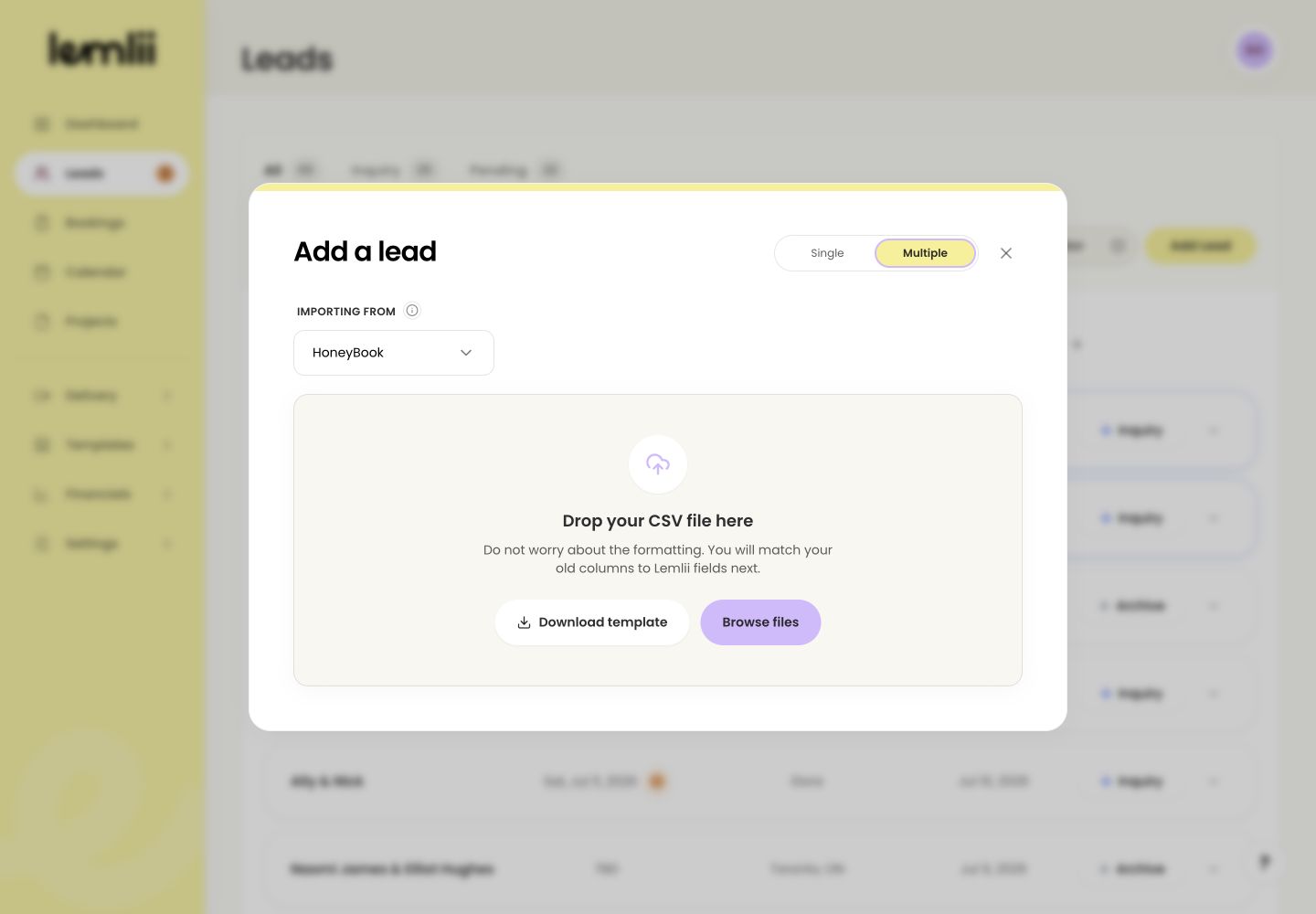
Both entry windows support Single entry and Multiple CSV import, including a downloadable template and column-matching preview.
Choose Leads or Bookings first
Use Leads for inquiries and Bookings for confirmed weddings or other jobs.
Add a single lead
- 1.
Open Leads and select Add Lead.
- 2.
Keep Single selected.
Single and Multiple entry choices - 3.
Enter the lead’s Name and any available contact, date, source, message, and note details.
- 4.
Save the lead, then open it from the appropriate status tab.
- 1.
Add a single booking
Wedding bookings require these details:
- Required wedding fields include Name, Partner’s name, Email, Inquiry date, and Wedding date.
- Choose Other for confirmed work that does not use the wedding-booking structure.
- Review date warnings before saving; the warning does not choose a different date for you.
Import several records from a CSV file
Use Multiple to import a list of leads or bookings:
- 1.
Select Add Lead or Add Booking, then choose Multiple.
- 2.
Choose the source under Importing from.
- 3.
Use Download template to prepare the file, or select Browse files to upload a prepared CSV.
- 4.
Match each uploaded column to the correct Lemlii field.
- 5.
Inspect Preview, then select Import leads or Import bookings.
- 1.
Read the import result
Review the added and skipped rows. For skipped rows, fix the required fields or column mapping shown in the message, then import the corrected records.
Check the records in their destination
Open the matching Leads status tab or Bookings type and year. Check an imported record for:
- The name and contact details are in the intended fields.
- Inquiry, event, and wedding dates are correct.
- Source, message, and private notes did not shift into another column.
- The record appears in the correct lead stage or booking type.
Notes
- CSV import requires the fields marked Required in the column matcher.
- Wedding dates show existing booking and blackout warnings; a warning does not silently change the date.