
Templates
How to Set Up Email Templates
Write reusable emails for lead replies and reminders.
Email templates live in Templates > Automations under Built-in emails and Your automations.
Use Add timing to schedule a reminder for a custom email.
Find your email templates
Open Templates > Automations to find:
- Built-in emails: emails used for Lemlii actions.
- Your automations: your custom emails and reminder schedules.
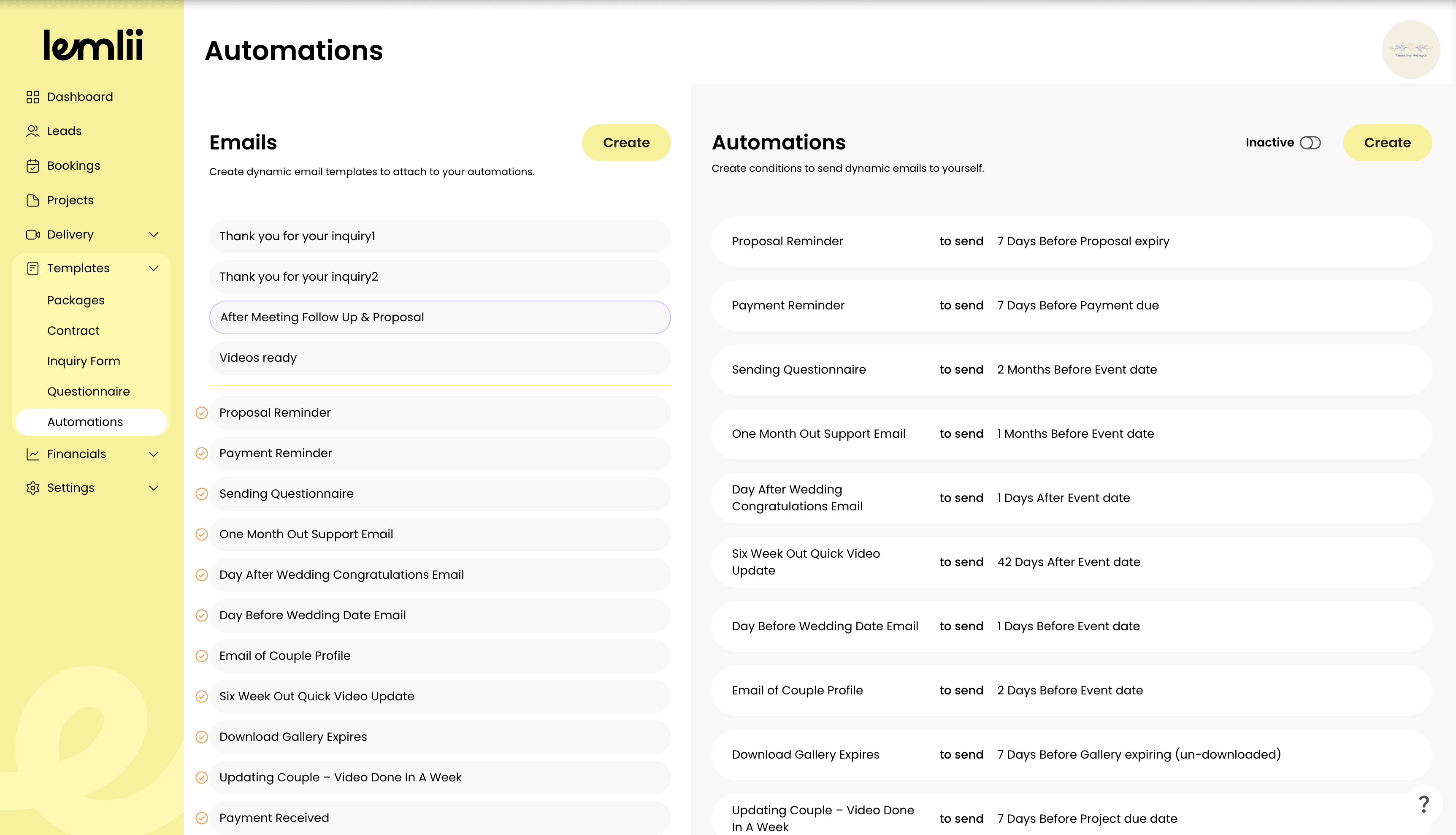
Built-in and custom email library Write a custom email
Select an existing custom email to revise it, or select New email.
- 1.
Enter an Email name that explains when the message should be used.
- 2.
Write the Subject.
- 3.
Write the Email body.
- 4.
Insert Dynamic fields wherever client or job information should be filled in automatically.
- 5.
Check the wording around each dynamic field.
- 6.
Select Save email.
- 1.
Use your email template
Use the template for a lead reply or reminder:
- Manual lead reply: open a lead and select Send Email, then Choose a reply. The message opens as a draft in your device’s default email app.
- Reminder message: add timing to an automation and select your message under Email template.
Edit or delete an email
Open an email under Your automations to edit it. Deleting it also removes its reminder rules and scheduled sends.
Notes
- The lead Send Email action prepares a draft and opens your device’s default email app. It does not send the email directly from Lemlii.