
Questionnaires
How to Review Questionnaire Responses
Open a booking’s questionnaire and read the client’s saved or completed answers.
Open Questionnaire on a booking to read the client’s answers.
Each questionnaire shows whether it is awaiting responses, has saved progress, or was completed.
Open the questionnaire attached to the booking
- 1.
Open Bookings and find the correct client.
- 2.
Select Questionnaire on that booking.
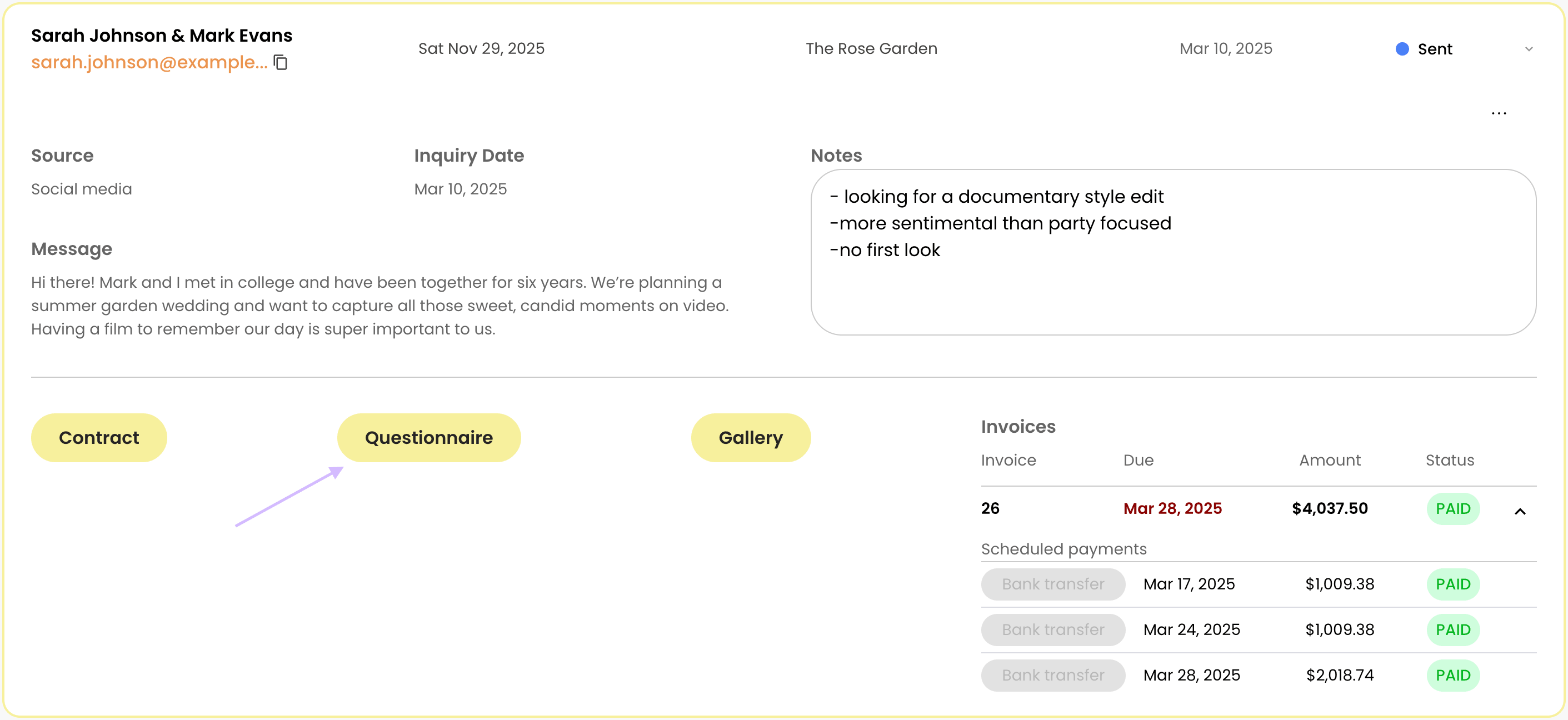
Open Questionnaire from a booking - 3.
Choose the assigned questionnaire by name.
- 1.
Understand the response status
Read the status beneath the client name before treating the answers as final.
- Awaiting client responses: no saved answers are available yet.
- Client progress saved: the client has entered information but has not completed the questionnaire.
- Completed by client: the client has submitted the questionnaire as complete.
Read the answers
The Client questionnaire viewer shows the saved answers. Check the client name and title, then read the responses.
Follow up with the client
- Copy URL: resend the same questionnaire address.
- Send another: assign a separate questionnaire for different information.
- Edit: change the client-specific questions; use it only when the form itself needs correction.
- Close the viewer to return to the booking.