
Payments & Financials
How to Use Transactions
Create expenses and sales, review recorded payments, and import or export financial CSV files.
Financials > Transactions separates manually tracked Expenses and Sales from invoice Payments.
Choose the record type you need
Open Financials > Transactions, choose a year, then a tab:
- Expenses: money the business spent and records manually.
- Sales: income records entered manually outside the invoice-payment workflow.
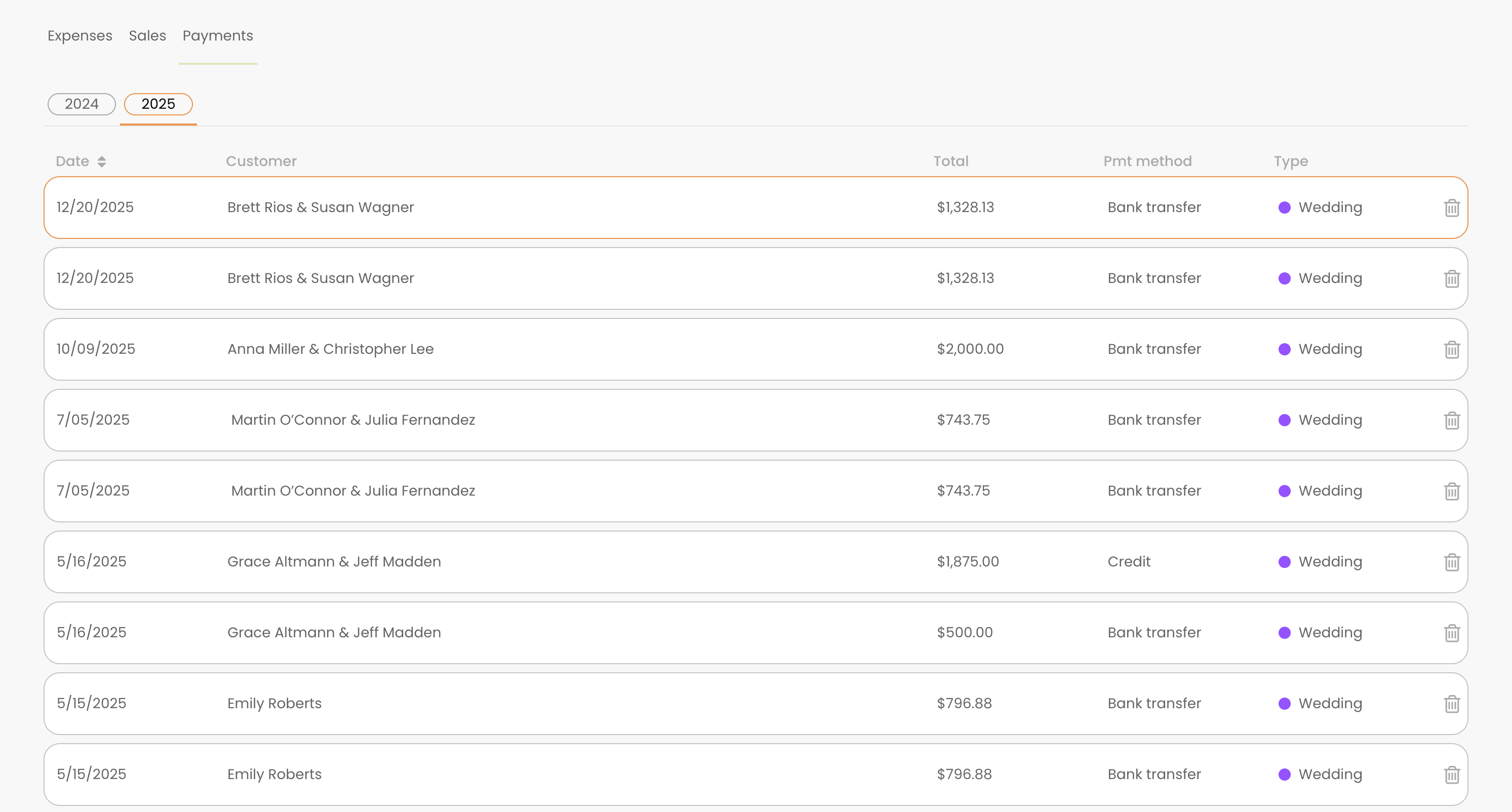
- Payments: payments connected to bookings and invoices; new payments are not created from this tab.
Transactions tabs and actions Create an expense or sale
- 1.
Open Expenses and select Create expense, or open Sales and select Create sale.
- 2.
Choose the Date and enter the vendor or customer.
- 3.
Add a useful Description and choose the Category.
- 4.
Enter Sub total, review tax, and choose the Payment method.
- 5.
Add recurrence when the transaction should repeat monthly or yearly, including an end date when appropriate.
- 6.
Attach a receipt when it is useful for the record.
- 7.
Save the transaction.
- 1.
Review, edit, or delete a manual transaction
Select an expense or sale to edit it or view its receipt. The trash action permanently deletes it.
Use the Payments tab as a review list
Payments lists booking and invoice payments. Select a linked payment to open its booking. Make corrections from the invoice or payment details.
Import expenses or sales from CSV
CSV import is available for manual expense and sale records, not for payments.
- 1.
Open the Expenses or Sales tab.
- 2.
Select CSV and choose Import.
- 3.
Choose the matching transaction type and upload the prepared file.
- 4.
Review the import result and correct skipped or mismatched rows.
- 1.
Export transaction records
Select CSV > Export, choose the type and date range, then download.
Notes
- Select an expense or sale row to edit it. The trash action permanently deletes that transaction.
- Recurring transactions can repeat monthly or yearly and may use an optional end date.