
Automations
How Automations Work With Leads and Bookings
See which dates automations use and what happens when those dates change.
Automations are timed around client events and deadlines.
Available triggers include inquiry received, booking date, event date, proposal expiry, payment due or received, an un-downloaded gallery nearing expiry, and project due date.
Dates that reminder timing can use
Keep the dates used by your reminders up to date.
Drafts go to your account email for review.
- Inquiry received, proposal expiry, booking date, or event date.
- Payment due, payment received, gallery expiry, or project due date.
Leads and proposal timing
A proposal-expiry rule uses the proposal’s expiry date for that client.
Lead reply system emails are prepared manually from Send Email.
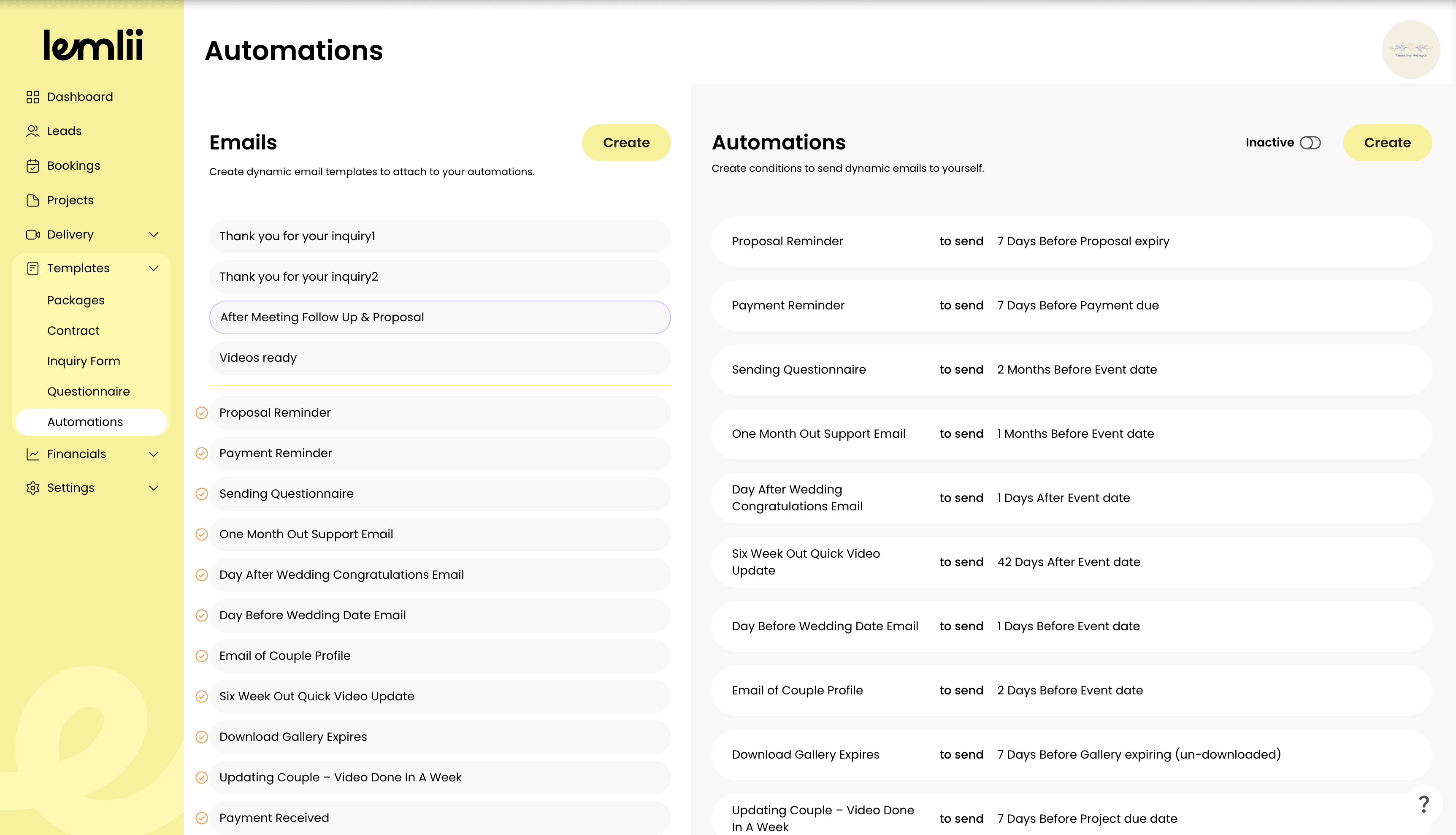
Automations overview Bookings, events, and payments
Event-date rules use the booking’s event date.
Payment rules use the connected payment due or received date. Keep those dates accurate before relying on the schedule.
Where prepared messages go
Reminder drafts go to your account email, shown in Automation activity.
Check the message and client details before sending.
When a date changes
Changing a proposal, payment, or event date recalculates future scheduled messages.
If the new send time has already passed, choose Send now, Keep date, or Skip.
Paused timing and activity records
Disable Turn automations on/off to pause reminder drafts.
Automation activity shows scheduled client events, not standalone email records.
Resolve reminders that need review
In Automation activity, confirm the client, Send date, Timing, Email, and Status.
If Review reminders appears, choose Send now, Keep date, or Skip for each changed date.