
Questionnaires
How to Send a Client Questionnaire
Add a questionnaire to a booking and send the link to your client.
Questionnaires are assigned from Bookings, not sent directly from the master-template page.
Lemlii creates a copy and a link for that client.
Assign a template to the booking
- 1.
Open Bookings and find the correct client row.
- 2.
Select Questionnaire.
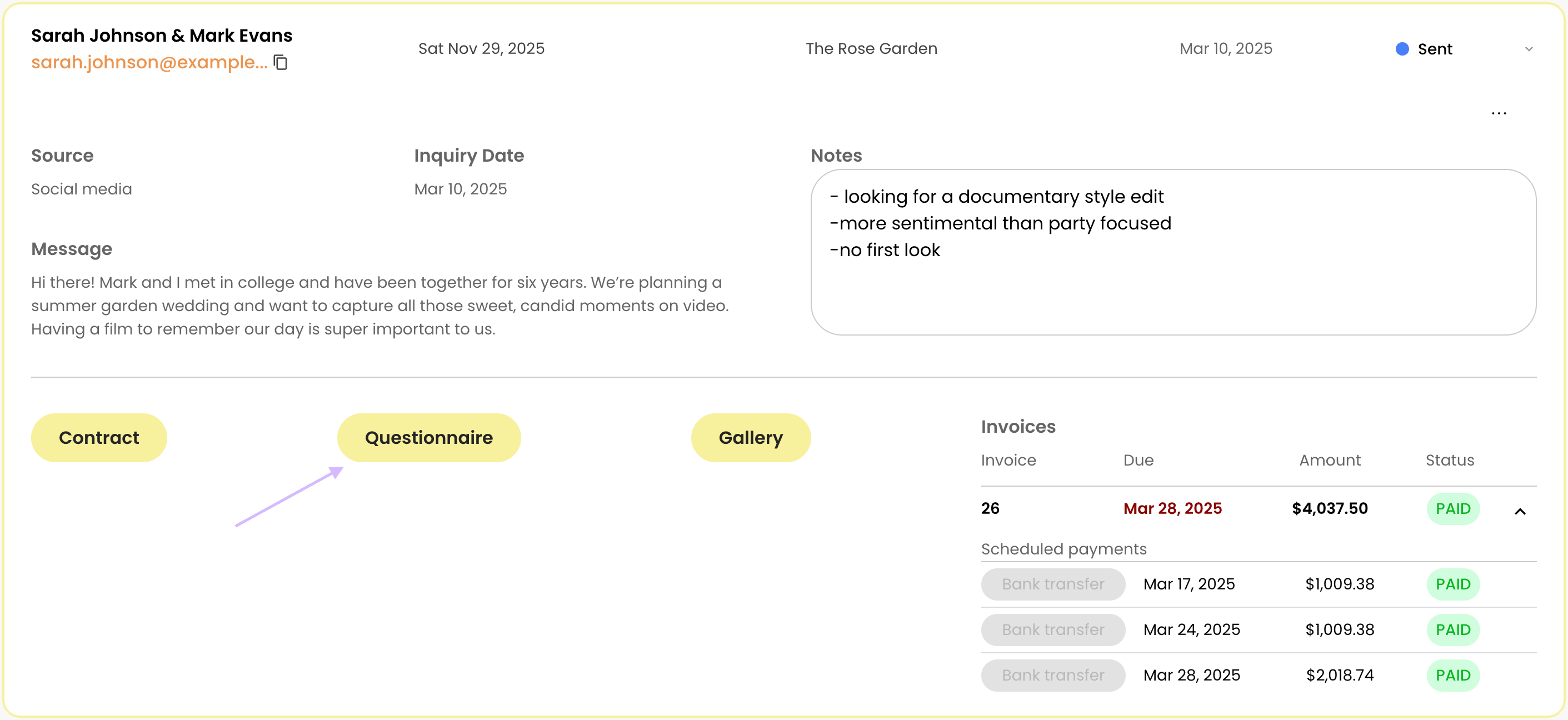
Questionnaire action on a booking - 3.
In Choose a questionnaire to send, select the template name.
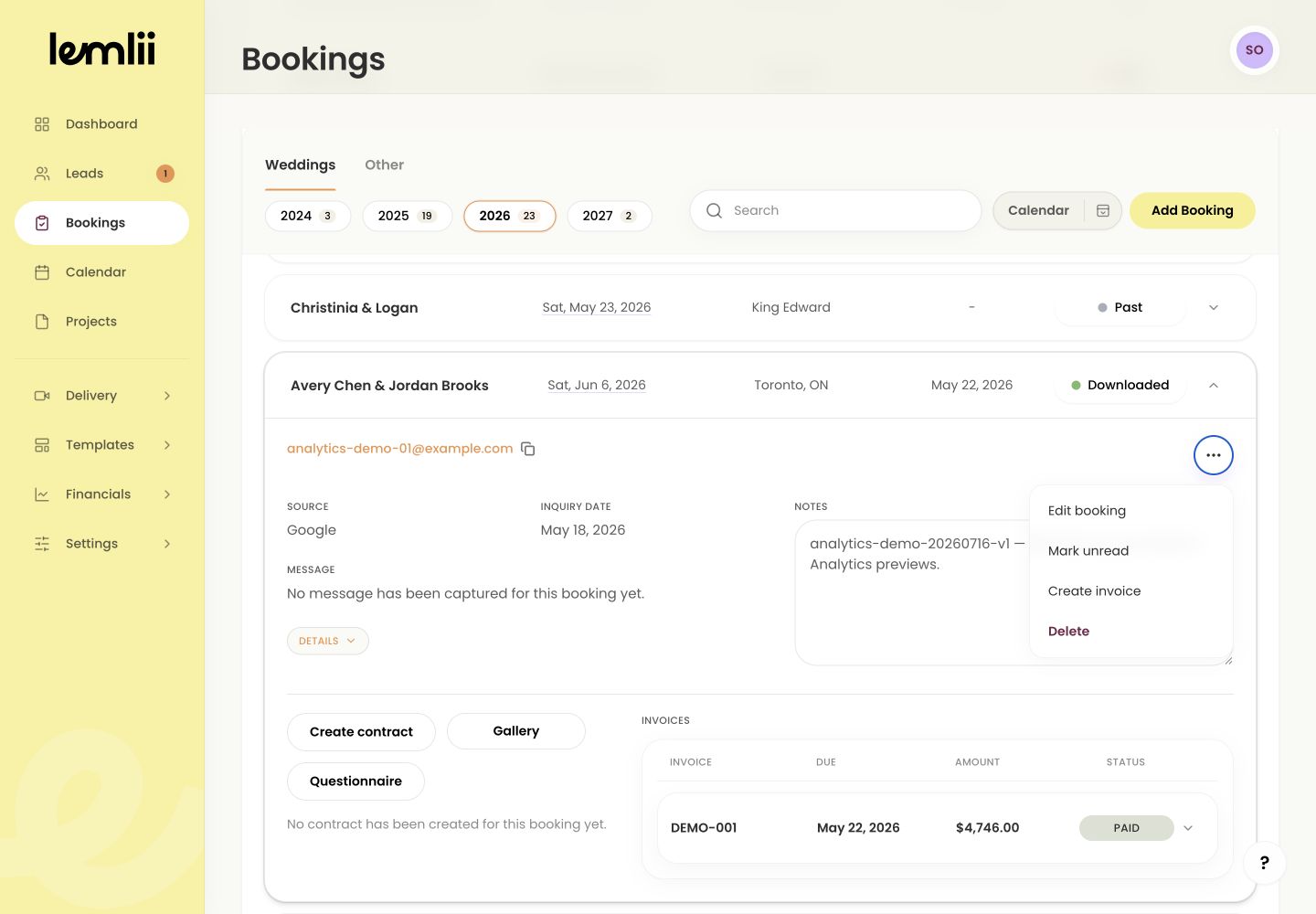
Choose a questionnaire to send - 4.
If the list is empty, create a template in Templates > Questionnaire first.
- 1.
Choose what to do with the client copy
Once assigned, you can edit, preview, or copy the questionnaire link:
- Edit Questionnaire: adjust this client’s wording, fields, or choices without changing the master.
- Open Questionnaire: review the public questionnaire exactly as the client will see it.
- Copy Questionnaire URL: copy the unique address for this booking.
Review before sending
Check the client name, questions, choices, and required fields. After editing, select Save & Return and preview the form.
Send the questionnaire address
Copy the link and send it to your client. The questionnaire shows Awaiting client responses until they start answering.
Notes
- Lemlii prepares the questionnaire address; you choose how to send it to the client.